The best USB docking stations for content creators turn a laptop into a more capable editing, streaming, photography, or production workstation. They can add multiple displays, card-free USB connectivity, wired networking, audio, and laptop charging through one cable.
These 10 picks cover compact USB-C hubs, DisplayLink docks, high-wattage business docks, and stand-style designs. Before choosing, verify your computer’s display support, required resolution, charging needs, and compatibility with your creative software.
Best 10 USB Docking Stations for Content Creators Picks for 2026
Compact Creator Hub

- Dual HDMI with up to 4K output
- SD/microSD readers and Ethernet
- Up to 85W pass-through charging
Best For: Windows creators needing a compact dual-monitor dock
Triple-Screen Workstation
WAVLINK DisplayLink 15-in-1 Dock

- Supports up to three external displays
- Six 10Gbps USB ports
- 100W charging with 130W adapter included
Best For: Creators building a high-connectivity three-monitor desk
Professional Office Dock
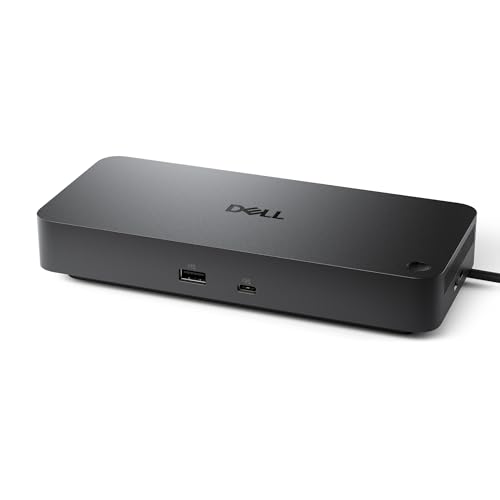
- Up to 100W laptop power delivery
- Native support for up to four displays
- Three-year warranty and advanced exchange
Best For: Professional mixed-workstation studios and offices
Powerhouse Connectivity

- 14 ports with dual HDMI and 10Gbps data support
- 160W total output with up to 100W USB-C charging
- Dual-display support for compatible Windows and ChromeOS setups
Best For: Creators needing broad connectivity and high-power workstation charging
DisplayLink Flexibility
UGREEN 9-in-1 Dual-Display Dock

- Supports extended dual 4K displays at 60Hz with DisplayLink
- Adds HDMI, DisplayPort, 10Gbps USB, and Gigabit Ethernet
- 100W PD input requires a separate power adapter
Best For: Mac and Windows creators building a dual-monitor editing setup
Desk-Saving Stand
Mukiya 8-in-1 USB-C Dock Stand

- Combines a nine-level laptop stand with an eight-in-one hub
- Includes 4K HDMI, SD/TF readers, USB ports, and up to 90W laptop charging
- Folds for travel and supports laptops up to 40 pounds
Best For: Creators wanting ergonomic laptop elevation and convenient card access
Best for Triple Displays
Kensington SD4760P 11-in-1 Dock

- Supports up to three external displays via DisplayLink
- Six USB-A ports plus HDMI, Ethernet, and audio
- Up to 100W Power Delivery with three-year warranty
Best For: Creators needing a three-monitor workstation and plentiful USB-A ports
Best for Dual 4K Windows Setups

- Dual HDMI outputs support 4K at 60Hz
- Four 10Gbps USB-A and USB-C data ports
- Up to 100W PD; charger sold separately
Best For: Windows creators seeking compact dual-4K connectivity
Best for Media Workflows

- Includes SD/microSD readers, Ethernet, HDMI, and DisplayPort
- Supports flexible multi-display configurations
- Adds a screen lock button and USB-C charging
Best For: Creators transferring camera media while using multiple displays
Compact Creator Hub – Anker 8-in-1 Dual HDMI Dock
The Anker 8-in-1 is a practical choice among USB docking stations for content creators who need dual HDMI, card readers, wired networking, and pass-through charging from one USB-C connection. Its compact design suits editing desks where space is limited.
Best For: Creators using Windows laptops who need SD/microSD access and two external displays.
Pros:
- Provides two HDMI ports, SD and microSD card readers, Ethernet, and USB-A data ports.
- Supports one 4K display at 60Hz or two displays at 4K 30Hz.
- Offers up to 85W pass-through charging with a suitable 100W charger and USB-C cable.
- Supports USB-C, USB4, and Thunderbolt connections.
Cons:
- macOS mirrors the same image on both external monitors.
- Charger and USB-C cable are not included.
- Not compatible with Linux.
This dock balances useful creator-focused connectivity with a small footprint. Check your laptop’s DP Alt Mode and Power Delivery support, and note the macOS display limitation before buying.
Triple-Screen Workstation – WAVLINK DisplayLink 15-in-1 Dock
The WAVLINK DisplayLink dock is built for creators who want a multi-monitor workstation, fast peripheral connections, and one-cable desk connectivity. It supports up to three external displays and includes a 130W power adapter for demanding daily setups.
Best For: Mac and Windows users building a three-screen editing, research, or production workspace.
Pros:
- Supports up to 4K 60Hz plus two 2K 60Hz displays.
- Includes six 10Gbps USB ports for external SSDs, drives, and other peripherals.
- Provides 100W Power Delivery and includes a 130W power adapter.
- Offers Gigabit Ethernet and compatibility with many USB-C, USB4, and Thunderbolt laptops.
Cons:
- MacBook M1 through M5 models require the DisplayLink driver.
- The host USB-C port must support video output, and USB-A laptops are not supported.
- Not recommended for gaming or HDCP-protected 4K streaming.
For creators who value screen space and fast file transfers, this is the most workstation-oriented option in the group. Its driver requirement and streaming limitations make compatibility checks especially important.
Dual-4K Editing Hub – UGREEN 9-in-1 Aluminum Dock
The UGREEN 9-in-1 aluminum dock is a strong fit for content creators who move media through SD or TF cards and want dual 4K monitor support. It combines card reading, USB data ports, HDMI output, and USB-C charging in a desk-friendly package.
Best For: Laptop-based photographers and video creators who use memory cards and dual 4K displays.
Pros:
- Supports two 4K displays at 60Hz through its HDMI ports.
- Includes SD/TF card reading at up to 170MB/s.
- Provides 5Gbps USB-C and USB-A data connections.
- Supports up to 85W pass-through charging through its 100W PD input.
Cons:
- macOS mirrors the same content on both external monitors.
- The HDMI ports are the only video outputs; the USB-C port is data-only.
- Wall charger and cable are not included.
This dock is especially convenient for card-based workflows and dual-display editing. It is less suitable for Mac users who require independent images on two external screens.
Professional Office Dock – Dell Pro WD25 Universal Dock
The Dell Pro WD25 is a business-oriented choice among USB docking stations for content creators who need dependable workstation expansion, broad operating-system support, and multiple high-resolution displays. Its 100W power delivery and manageable design suit established office or studio environments.
Best For: Professional creators using Dell or mixed-brand Windows, Linux, or ChromeOS workstations.
Pros:
- Delivers up to 100W to compatible laptops.
- Supports up to four high-resolution displays natively.
- Includes USB, USB-C, DisplayPort, HDMI, and Ethernet connectivity.
- Offers a three-year limited hardware warranty with advanced exchange.
Cons:
- It is larger and heavier than compact travel-oriented hubs.
- Its listed operating-system support is focused on Windows, Ubuntu, Red Hat Enterprise Linux, and ChromeOS.
- The supplied details do not specify a built-in SD or microSD card reader.
The WD25 prioritizes manageability, display expansion, and long-term office deployment over memory-card workflow features. It is a sensible choice when a creator’s setup also needs enterprise-style support and broad display capacity.
Powerhouse Connectivity – Anker Prime 14-in-1 Dock
For content creators building a flexible workstation, this USB docking station for content creators combines 14 ports, fast 10Gbps data connections, dual HDMI outputs, and substantial charging capacity. It supports USB-C, USB4, and Thunderbolt connections, making it a strong option for compatible Windows or ChromeOS laptops.
Best For: Creators who need extensive connectivity, high-power charging, and dual-display support on a Windows or ChromeOS workstation.
Pros:
- 14-in-1 design includes dual HDMI, audio, Ethernet, USB-C, and USB-A connectivity.
- Offers up to 10Gbps data transfer and 160W total output, with up to 100W through supported USB-C ports.
- Supports two external displays, with up to 2K at 60Hz on compatible DP 1.4 systems.
- Includes a USB-C upstream cable and a 24-month warranty.
Cons:
- It does not support a 5120×1440 monitor.
- On macOS, both external displays show the same image.
- It is not compatible with Linux.
The Anker Prime is a capable centerpiece for a busy creator desk, especially when charging and port variety matter as much as display expansion. Check your laptop’s video-output support and operating system before buying.
DisplayLink Flexibility – UGREEN 9-in-1 Dual-Display Dock
The UGREEN DisplayLink dock is a practical USB docking station for content creators who want dual 4K monitor support across compatible macOS and Windows systems. It adds two HDMI ports, two DisplayPort outputs, 10Gbps USB connections, Gigabit Ethernet, and 100W Power Delivery in a compact design.
Best For: Mac and Windows users who need extended dual-4K displays and fast peripheral connections through one dock.
Pros:
- DisplayLink technology supports extended or mirrored dual 4K monitors at 60Hz on supported systems.
- Includes two HDMI ports, two DisplayPort ports, Gigabit Ethernet, and 100W PD.
- Two USB-A and one USB-C port provide data speeds up to 10Gbps.
- Compact 6-by-3-by-0.9-inch design and 24-month warranty.
Cons:
- Driver installation is required for display and network functions.
- The power adapter and HDMI cables are not included.
- Charging is rated at 100W, but the required charger must be supplied separately.
UGREEN’s dock is well suited to creators who prioritize multi-monitor flexibility and fast file transfers. The extra setup step for DisplayLink and the need to provide a charger should be included in your buying decision.
Desk-Saving Stand – Mukiya 8-in-1 USB-C Dock Stand
The Mukiya combines a laptop stand and USB hub, giving content creators a space-saving USB docking station for content creators with HDMI, USB, SD, and TF card connectivity. Its adjustable aluminum stand can help organize a workstation while providing a convenient way to connect storage cards and peripherals.
Best For: Mobile creators, students, and desk users who want an adjustable laptop stand with basic display, card-reader, and peripheral expansion.
Pros:
- Combines an eight-in-one hub with a nine-level adjustable laptop stand.
- Provides 4K HDMI output at up to 30Hz on compatible USB-C video ports.
- Includes SD and TF card slots, two 5Gbps USB-A ports, and USB-C data connectivity.
- Folds for travel, weighs 0.7 pounds, and supports laptops up to 40 pounds.
Cons:
- 4K HDMI output is limited to 30Hz.
- The laptop must support video output or DisplayPort Alt Mode through USB-C.
- SD and TF transfer speeds are listed at up to 25MB/s.
This dock stand is a good fit when ergonomics, portability, and card access are more important than maximum display refresh rates. It offers a tidy all-in-one setup, but users working with demanding multi-monitor workflows may prefer a more display-focused dock.
Best for Triple Displays – Kensington SD4760P 11-in-1 Dock
For content creators building a multi-monitor workstation, the Kensington SD4760P is a versatile choice among USB docking stations for content creators. Its DisplayLink setup supports up to three external displays from one connection, while 100W Power Delivery and six USB-A ports help keep a laptop and accessories connected.
Best For: Creators who need three-monitor support, extensive USB-A connectivity, and broad Windows or Mac compatibility.
Pros:
- Supports one 4K display at 30Hz plus two 1080p displays at 60Hz through DisplayLink.
- Offers three HDMI ports, six USB-A 3.2 Gen 1 ports, Gigabit Ethernet, and combo audio.
- Provides up to 100W laptop charging and includes a three-year limited warranty.
Cons:
- Requires DisplayLink drivers, and the listed resolutions do not provide three 4K displays.
- The mounting bracket and security cable are sold separately.
The SD4760P is a strong desktop-oriented option when display count and legacy USB-A connectivity matter most. It is especially practical for creators managing timelines, reference material, and communication tools across several screens.
Best for Dual 4K Windows Setups – UGREEN 7-in-1 USB-C Dock
The UGREEN 7-in-1 dock is a compact pick for content creators who want fast peripheral connections and two high-resolution monitors. Its dual HDMI outputs support 4K at 60Hz when the laptop supports DP 1.4, while 10Gbps USB-A and USB-C ports handle fast data transfers.
Best For: Windows-based creators with a full-function USB-C or Thunderbolt laptop who want dual 4K displays in a lightweight aluminum dock.
Pros:
- Supports dual 4K displays at 60Hz on compatible systems.
- Includes two 10Gbps USB-A and two 10Gbps USB-C data ports.
- Supports up to 100W Power Delivery through its dedicated charging port.
Cons:
- macOS mirrors the same content across both external monitors rather than extending them independently.
- The charger and charging cable are not included.
- Full performance depends on a compatible laptop, cables, and DP 1.4 support.
This dock offers a focused set of high-speed ports without the size of a larger desktop station. It makes the most sense for Windows users, while Mac users should accept the documented mirrored-display limitation.
Best for Media Workflows – MOKiN 14-in-1 Laptop Dock
For creators who move footage and other files regularly, the MOKiN 14-in-1 dock combines display outputs, card readers, wired networking, and USB connectivity in one hub. It includes two HDMI ports, two DisplayPort ports, SD and microSD slots, and support for multi-display configurations on compatible systems.
Best For: Content creators who need built-in SD/microSD readers, multiple display-output options, Ethernet, and a large selection of everyday ports.
Pros:
- Provides two HDMI, two DisplayPort, SD/microSD, Ethernet, USB, and USB-C connections.
- Supports flexible combinations such as two HDMI plus DisplayPort or two DisplayPort plus HDMI.
- Includes a screen lock button and a USB-C charging port rated up to 100W.
Cons:
- Display capabilities depend on the host system and supported configuration.
- USB data ports are listed at up to 5Gbps rather than 10Gbps.
- The supplied notes describe the charging port as 100W maximum while the product highlight lists 87W PD.
The MOKiN is a practical all-in-one choice for creators who would otherwise need separate card readers and adapters. Its broad port selection is more important than maximum USB transfer speed, making it well suited to flexible home or studio setups.
How We Picked the Best USB Docking Stations for Content Creators
We focused on docks that address common creator workflows: connecting one or more external monitors, transferring files from cameras and storage devices, charging a laptop, and reducing cable clutter. The selection includes USB-C docks with HDMI outputs, DisplayLink models for expanded multi-monitor support, and business-oriented options with higher power delivery.
We also considered port variety, stated video capabilities, operating-system compatibility, physical design, and whether the dock requires drivers. Because laptop ports and display technologies vary, specifications should be confirmed against your exact computer before purchase.
Quick Comparison
| Best For | Look For | Potential Trade-Off |
|---|---|---|
| Dual-monitor editing | Two video outputs and adequate USB-C bandwidth | Resolution may depend on the host laptop |
| Triple-monitor workstations | DisplayLink support and compatible drivers | More software dependence and possible added latency |
| High-performance laptops | 100W-class power delivery and strong thermal design | Actual charging may be limited by the laptop |
| Portable setups | Compact aluminum hub with essential ports | Fewer ports and less expansion headroom |
| Permanent desk setups | Many USB ports, Ethernet, audio, and multiple displays | Larger footprint and more cables |
Key Buying Factors for USB Docking Stations for Content Creators
Display Compatibility
Check the number and type of video outputs, supported refresh rates, and maximum resolution. Native USB-C Alt Mode docks generally depend on the graphics capabilities of the host computer. DisplayLink docks can support additional monitors through software, but require driver installation and may not be ideal for color-critical or latency-sensitive work.
Ports and Transfer Speeds
Creators often need several USB-A and USB-C ports for external SSDs, card readers, microphones, cameras, control surfaces, and backup drives. Prioritize faster USB ports for active project files and confirm whether the dock shares bandwidth between ports.
Power Delivery
A dock advertising up to 100W may not deliver that entire amount to the laptop after the dock reserves power for its own operation. Compare its output with your computer’s charger requirement, especially for mobile workstations.
Operating-System and Driver Support
Windows and macOS support can differ, particularly for Apple silicon systems and DisplayLink products. Review the manufacturer’s compatibility list and confirm that required drivers work with your current operating-system version.
Desk Layout and Reliability
A weighted aluminum dock can be useful for a fixed editing station, while a compact hub suits travel. Look for stable Ethernet, dependable wake-and-sleep behavior, adequate ventilation, and a host cable that reaches your preferred laptop position.
Who Should Buy Which USB Docking Stations for Content Creators?
- Choose a compact USB-C hub if you mainly need a second display, a few accessories, and simple plug-and-play connectivity.
- Choose a DisplayLink dock if you need three displays or your laptop cannot natively drive the number of monitors you want. Accept the driver requirement and software-based display processing.
- Choose a 100W business-class dock if dependable charging, Ethernet, and long desk sessions matter more than the smallest footprint.
- Choose a 14-in-1 or similarly expanded dock if your workstation uses multiple drives, peripherals, displays, and wired networking at once.
- Choose a dock stand if you want to raise the laptop while consolidating ports, but verify that its size and angle fit your computer.
For most creators, the best choice balances monitor support and fast peripheral connectivity rather than simply offering the highest port count. Match the dock to your laptop’s actual USB-C capabilities, then leave some bandwidth and power headroom for future equipment.