A reliable docking station can turn a laptop into a more capable home-office workstation, adding monitors, wired networking, storage, and comfortable desktop peripherals through one connection.
We compared 10 USB-C docking stations across display support, port selection, compatibility, and ease of use to help you choose the right setup for your desk.
Best 10 USB Docking Stations for Home Offices Picks for 2026
Best Compact Dual-Display Pick

- Dual HDMI with up to 4K output
- 85W pass-through charging
- Ethernet and SD/microSD readers
Best For: Compact Windows dual-monitor desks
Best Triple-Monitor Workstation Pick

- Supports up to three external monitors
- Six 10Gbps USB ports
- 100W charging with 130W adapter
Best For: Multi-screen remote-work stations
Best High-Port-Count Pick

- 19 ports with 10 USB connections
- Dual 4K HDMI display support
- Up to 100W PD input
Best For: Peripheral-heavy Windows and ChromeOS desks
Best Dual-Display Value

- Dual 4K HDMI outputs for Windows setups
- 100W PD input with up to 85W laptop charging
- USB 5Gbps ports and SD/microSD readers
Best For: Windows users building a dual-monitor home office
Best for Triple-Monitor Workspaces

- Three HDMI outputs with dual or triple 4K support
- Six USB ports, Ethernet, and card readers
- Compact design with one-press monitor blackout
Best For: Windows and ChromeOS power users with multi-screen setups
Best Port Variety

- Dual HDMI plus DisplayPort for multi-monitor setups
- 10Gbps USB and eight total USB ports
- Ethernet, audio, and 100W PD input
Best For: Windows users needing broad connectivity and triple-display support
Best for Triple-Display Workspaces
TobenONE 18-in-1 Triple 4K Dock
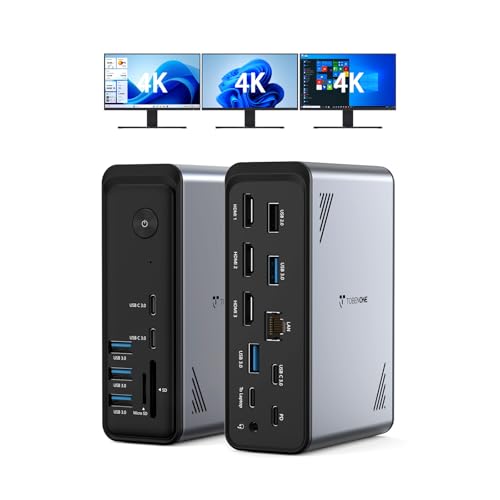
- Three HDMI outputs support dual or triple 4K at 60Hz
- 18 ports include nine USB connections and card readers
- Up to 100W PD; power adapter sold separately
Best For: Windows and ChromeOS triple-monitor home offices
Best for Flexible Multi-Monitor Setups
MOKiN 14-in-1 Dual-Monitor Dock

- Two HDMI and two DisplayPort outputs offer flexible setups
- Includes Gigabit Ethernet, USB ports, and card readers
- Up to 100W PD charging with a screen-lock button
Best For: Multi-monitor Windows or Mac desks needing wired networking
Best Simple Pick

- Two HDMI ports support dual 4K at 60Hz
- Four 5Gbps USB-A/C data ports plus card readers
- Up to 90W laptop charging from 100W input
Best For: Compact dual-monitor productivity setups
Best Compact Dual-Display Pick – Anker 8-in-1 USB-C Dock
The Anker 8-in-1 is a practical choice among USB docking stations for home offices when you need dual HDMI outputs, wired networking, card readers, and laptop charging from one USB-C connection. It supports one 4K display at 60Hz or two displays at 4K 30Hz, with up to 85W pass-through charging when paired with a suitable charger and cable.
Best For: Windows users building a compact dual-monitor home-office setup with Ethernet and SD card access.
Pros:
- Two HDMI ports support dual 4K displays at 30Hz on compatible systems.
- Includes USB-A ports, Gigabit Ethernet, SD and microSD readers, and USB-C PD input.
- Supports up to 85W pass-through charging and USB-C, USB4, and Thunderbolt connections.
Cons:
- macOS mirrors the same image on both external monitors rather than extending independently.
- 100W wall charger and USB-C cable are required for pass-through charging but are not included.
- Not compatible with Linux.
This dock offers a useful mix of display, networking, storage, and charging features in a small 3.2-ounce enclosure. Check your laptop’s DP Alt Mode and Power Delivery support before buying, especially if you plan to use two monitors.
Best Triple-Monitor Workstation Pick – WAVLINK DisplayLink Dock
The WAVLINK DisplayLink dock is designed for demanding USB docking stations for home offices, supporting up to three external monitors with a 4K 60Hz HDMI output plus two 2K 60Hz HDMI or DisplayPort outputs. It also combines 100W laptop charging, six 10Gbps USB ports, Gigabit Ethernet, and a 130W power adapter for a one-cable desk setup.
Best For: Remote workers, traders, developers, and other users who need three displays and several high-speed peripherals.
Pros:
- Supports up to three external monitors at 4K + 2K + 2K output specifications.
- Six USB ports, including two USB-C and four USB-A ports, support 10Gbps transfers individually.
- Includes 100W Power Delivery, Gigabit Ethernet, a 130W adapter, and a two-year warranty.
Cons:
- MacBook M1 through M5 models require a DisplayLink driver, and the USB-C port must support video output.
- It does not support USB-A laptops or gaming consoles.
- Not recommended for gaming or HDCP-protected 4K streaming.
For a multi-screen workstation, this WAVLINK model stands out for its monitor capacity, fast USB connectivity, and included power adapter. Confirm DisplayLink requirements and host-port compatibility before purchasing, particularly for Apple laptops.
Best High-Port-Count Pick – TobenONE 19-in-1 Dock
The TobenONE 19-in-1 is suited to USB docking stations for home offices that need to keep many peripherals connected. It provides 10 USB ports, dual 4K HDMI outputs, Gigabit Ethernet, SD and microSD slots, audio, and up to 100W input with approximately 65W or more available to the laptop depending on the connected charger and system.
Best For: Windows and ChromeOS users with printers, storage drives, phones, input devices, and two external monitors.
Pros:
- Offers 19 ports, including 10 USB ports, dual HDMI, Ethernet, card readers, and a 3.5mm audio jack.
- Supports two 4K displays for a more spacious desktop workspace.
- Provides 5Gbps file transfers and up to 100W PD input through one USB-C connection.
Cons:
- Compatibility depends on a full-featured USB-C port; the supplied details focus on Windows and ChromeOS systems.
- The available charging power depends on the charger and laptop, with the notes indicating approximately 65W or higher to the computer.
- The supplied specifications are incomplete, so verify the exact port and display details for your model.
This is a strong fit when port quantity matters more than a minimalist footprint. Its dual-monitor support and broad peripheral connectivity can reduce cable swapping, but check your laptop’s USB-C capabilities and the exact charging requirements before ordering.
Best Vertical Triple-Display Pick – Selore 17-in-1 Dock
The Selore 17-in-1 is a feature-rich option among USB docking stations for home offices, combining three HDMI ports, two DisplayPorts, fast USB connections, card readers, Ethernet, and a vertical design. On compatible Windows laptops it can drive three extended displays, while macOS is limited to mirrored or single extended display operation.
Best For: Windows users who want a stable vertical dock for triple-monitor productivity, creative work, and fast media transfers.
Pros:
- Supports three Windows displays, with two ports up to 4K 60Hz and a third up to 4K 30Hz in listed combinations.
- Includes 10Gbps and 5Gbps USB ports, SD/microSD 3.0 readers, and Gigabit Ethernet.
- Offers up to 100W input and approximately 85W pass-through charging with a suitable charger.
- Built-in display shows weather, date, time, and charging status, while the base helps keep the dock stable.
Cons:
- macOS does not support three independent extended displays; external screens mirror or operate as a single extended display.
- The power adapter is sold separately, and an 87W-or-higher charger is required for full operation.
- Display resolution varies by port combination, with the third display limited to 4K 30Hz in the listed setup.
The Selore is particularly compelling for a Windows workstation that needs three screens, fast storage transfers, and a space-saving vertical form factor. Apple users should treat it as a connectivity dock rather than a true triple-monitor extender.
Best Dual-Display Value – Selore USB-C Dual HDMI Dock
For home offices needing two external screens, this compact 8-in-1 dock adds dual HDMI outputs, laptop charging, USB ports, and memory-card readers through one USB-C connection. It is a practical choice among USB docking stations for home offices, provided your laptop has a full-featured USB-C or Thunderbolt port.
Best For: Windows users building a dual-monitor workstation with USB peripherals and SD or microSD cards.
Pros:
- Two HDMI ports support up to 4K at 60Hz and Windows dual-monitor extension.
- Provides 100W PD input, with up to 85W available for laptop charging.
- Includes USB-C and USB-A 5Gbps ports plus SD and microSD readers.
Cons:
- macOS supports mirroring only, not dual-screen extension.
- Power charger and charging cable are not included.
- Video requires a full-featured USB-C or Thunderbolt port.
This dock focuses on the essentials for a two-screen home-office setup without taking up much desk space. Check your laptop’s USB-C specifications and operating system before buying, especially if you use a Mac.
Best for Triple-Monitor Workspaces – TobenONE 14-in-1 Dock
The TobenONE combines three HDMI outputs, six USB ports, Ethernet, card readers, and power delivery in a smartphone-sized enclosure. For demanding USB docking stations for home offices, it offers a convenient way to connect a laptop to a broad multi-monitor workstation with one USB-C cable.
Best For: Remote workers, designers, traders, and creators who need three displays and many connected peripherals.
Pros:
- Supports triple or dual 4K display output on compatible Windows and ChromeOS laptops.
- Includes six USB ports, Gigabit Ethernet, SD/microSD slots, and 100W PD input.
- Compact, travel-ready design includes a one-press monitor blackout feature.
Cons:
- Display compatibility depends on a full-featured USB-C, USB4, or Thunderbolt connection.
- The supplied notes specify Windows and ChromeOS compatibility rather than broad macOS support.
Its standout advantage is connectivity density: it can consolidate a multi-screen, wired-network, and peripheral-heavy desk into a single laptop connection. Verify your laptop and operating-system requirements before relying on triple-display output.
Best Port Variety – LIONWEI 13-in-1 USB-C Dock
With dual HDMI, DisplayPort, eight USB ports, Ethernet, audio, and 100W PD charging, this LIONWEI hub is designed for a home office that uses a wide mix of accessories. It is one of the more versatile USB docking stations for home offices, particularly for Windows users who want triple-display support.
Best For: Windows laptop users who need multiple display outputs, fast USB transfers, wired networking, and audio connectivity.
Pros:
- Offers dual HDMI and DisplayPort with up to 4K at 60Hz on compatible sources.
- Provides 10Gbps USB-C and USB 3.1 connectivity alongside USB 3.0 and USB 2.0 ports.
- Includes Gigabit Ethernet, a 3.5mm audio/mic jack, and 100W PD input.
Cons:
- Triple-display MST and SST support is limited to Windows; macOS can extend to only one monitor.
- The dock uses 13W, leaving up to 87W for laptop charging.
- Video output requires a compatible USB-C connection and DP 1.4 source for stated 4K/60Hz performance.
This is a strong fit when port variety matters as much as monitor support. Its combination of fast data, networking, audio, and display connections can simplify a busy desk, though Mac users should plan around the more limited extended-display support.
Best for Triple-Display Workspaces – TobenONE 18-in-1 Triple 4K Dock
For home offices that need serious expansion, the TobenONE 18-in-1 is one of the most versatile USB docking stations for home offices. It combines three HDMI outputs, nine USB ports, Ethernet, card readers, audio, and up to 100W power delivery in one hub. It is designed for compatible full-featured USB-C Windows and ChromeOS laptops, but it does not include a power supply.
Best For: Windows or ChromeOS users building a triple-monitor workstation with many wired peripherals.
Pros:
- Supports dual or triple 4K displays at up to 60Hz through three HDMI ports.
- Offers 18 ports, including nine USB ports, RJ45 Ethernet, SD and microSD readers, and 3.5mm audio.
- Provides up to 100W power delivery for keeping a compatible laptop charged during use.
- Works with many Windows 10-or-later and ChromeOS laptops, including Dell, HP, Lenovo, and Surface models.
Cons:
- Power supply is not included; stable operation requires an additional power adapter rated above 65W.
- Compatibility depends on a full-featured USB-C port, and the supplied notes specifically emphasize HDMI monitor use.
The TobenONE is the most capable choice here for a busy, display-heavy home office. Its extensive port selection can reduce cable clutter, though buyers should budget for a suitable power adapter and verify laptop compatibility first.
Best for Flexible Multi-Monitor Setups – MOKiN 14-in-1 Dual-Monitor Dock
The MOKiN 14-in-1 is a practical pick among USB docking stations for home offices where monitor flexibility and wired networking matter. Its combination of HDMI and DisplayPort outputs supports several multi-screen arrangements, while USB ports, card readers, Ethernet, and up to 100W charging cover everyday desk accessories and connectivity needs.
Best For: Windows or macOS laptop users who want multiple display-output options, fast USB transfers, and wired Gigabit Ethernet.
Pros:
- Includes two HDMI and two DisplayPort outputs for configurations such as two HDMI plus one DisplayPort or two DisplayPorts plus one HDMI.
- Provides 14 connections, including USB-C and USB-A ports, SD and microSD readers, Ethernet, and USB-C power input.
- Supports up to 100W USB-C PD charging and a 1000Mbps RJ45 wired network connection.
- Screen-lock button can turn off connected displays with a short press.
Cons:
- macOS support is listed, but the supplied product information highlights limitations around external-display behavior for Mac systems.
- The listing’s highlights reference 87W PD output even though the charging input is rated at up to 100W, so laptop charging output should be checked carefully.
With four video outputs and a strong selection of desk-friendly connections, the MOKiN offers useful flexibility for a mixed-device home office. It is especially appealing if Ethernet stability and display configuration options are higher priorities than a minimal setup.
Best Simple Pick – Acer 9-in-1 USB-C Dock
The Acer 9-in-1 is a streamlined option for home offices that need dual monitors without the bulk of a larger dock. It provides two HDMI outputs, several 5Gbps USB ports, SD and microSD readers, and laptop charging support in an aluminum enclosure with a built-in cable.
Best For: Laptop users who want a compact dual-4K monitor dock with fast USB connections and convenient card access.
Pros:
- Supports two HDMI displays at up to 4K and 60Hz on compatible systems.
- Includes three USB-A and one USB-C data port rated at 5Gbps.
- Offers SD and microSD readers with transfer speeds up to 104Mbps.
- Accepts up to 100W input and delivers up to 90W to the laptop for charging while connected.
Cons:
- It has fewer ports than the other options and does not list Ethernet, DisplayPort, or audio connectivity.
- Mac systems can mirror the same content across external monitors rather than extend separate displays.
- Dual-monitor support requires a compatible full-featured USB-C port with display capability.
The Acer makes sense when a clean, compact desk setup is more important than maximum expansion. Its dual 4K outputs and useful card readers suit everyday productivity, while the lack of Ethernet and more specialized ports may limit larger workstation setups.
How We Picked the Best USB Docking Stations for Home Offices
We focused on the features that matter most in a daily home-office setup: monitor support, video output standards, USB port variety, power delivery, network connectivity, operating-system compatibility, and overall flexibility. The selection includes compact hubs for simpler desks, multi-monitor docks for demanding workflows, and DisplayLink-based options for laptops that need broader display expansion.
Specifications can vary by host laptop, operating system, cable, and monitor. Before buying, confirm that your computer supports the required USB-C video mode, charging wattage, and number of external displays.
Quick Comparison
| Need | Best feature to prioritize | Why it matters |
|---|---|---|
| Basic desk expansion | 8-in-1 or 9-in-1 design | Adds essential display, USB, and card or network ports without excess hardware. |
| Two external monitors | Dual HDMI or mixed HDMI/DisplayPort outputs | Provides more screen space for documents, calls, and research. |
| Three monitors | DisplayLink support or dedicated multi-display hardware | Helps overcome display limits on some laptops, particularly certain Mac models. |
| Many accessories | 13-in-1, 18-in-1, or 19-in-1 layout | Reduces the need for separate adapters and hubs. |
Key Buying Factors for USB Docking Stations for Home Offices
Display Compatibility
Check maximum resolution and refresh rate for each output, not just the headline total. A dock may support 4K on one display while lowering resolution or refresh rate when multiple screens are connected. MacBook and Windows display behavior can also differ, so verify compatibility for your exact processor and operating system.
Ports and Bandwidth
Count the ports you will use simultaneously. USB-A remains useful for keyboards, printers, and older drives, while USB-C ports may support data, charging, or display output rather than all three. Gigabit Ethernet is valuable for stable video calls and large file transfers.
Power Delivery and Setup
A dock with pass-through charging can reduce cable clutter, but its maximum output may be lower than the included laptop charger. Look for a dependable power adapter when one is supplied, and place the dock where its short host cable can reach comfortably.
Driver Requirements
DisplayLink docks may require software and periodic driver updates. They can be useful for multiple displays, but native video output is generally simpler when your laptop supports it directly.
Who Should Buy Which USB Docking Stations for Home Offices?
Choose a compact dual-monitor dock if your priority is a clean desk with two screens and everyday peripherals. Pick a higher-port-count model if you connect storage, Ethernet, printers, memory cards, and several USB accessories at once. For three-monitor workstations, prioritize confirmed operating-system support and DisplayLink requirements over the largest port count. If you use a MacBook, Windows laptop, or mixed-device household, verify display limitations before choosing based on specifications alone.