Finding the right classroom display is about more than screen size. The best options make lessons easier to teach, students easier to engage, and shared content easier to annotate in real time.
This roundup of touch screen classroom displays with whiteboard software focuses on practical features that matter in schools, training rooms, and hybrid learning spaces.
Best 10 Touch Screen Classroom Displays with Whiteboard Software Picks for 2026
Video Meeting Whiteboard
DTEN D7 55-inch Conference System
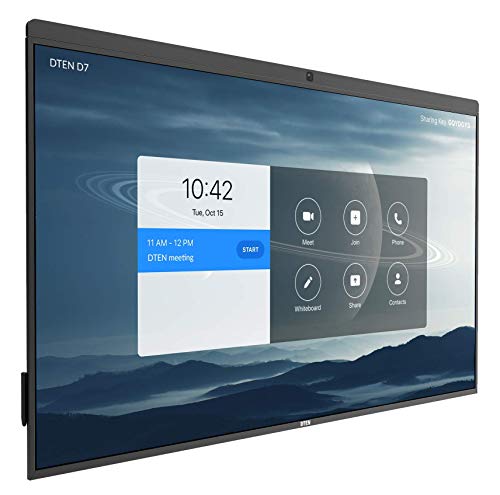
- 55-inch 4K touchscreen display
- Built-in HD camera and microphone array
- Designed for video-first collaboration
Best For: Hybrid classrooms and conference rooms
Windows Performance Choice
TouchWo 55" Interactive Touchscreen PC

- Windows 11 Pro with Intel i7
- 10-point touch for annotation and gestures
- 512GB SSD for apps and storage
Best For: Users who want a PC-style interactive whiteboard
Large-Screen Collaboration Pick

- 75-inch 4K touchscreen for larger rooms
- Android and Windows dual-system support
- Wireless sharing with four-way split screen
Best For: Large classrooms and collaboration spaces
Windows Classroom Hub

- Windows 11 with Core i7, 8GB RAM, 512GB storage
- 10-point touch for notes, zooming, and annotation
- Wi‑Fi, USB, VGA, HDMI, and built-in speakers
Best For: Classrooms needing a PC-like interactive whiteboard
Android Teaching Board
- Android 11 with Play Store app support
- 10-point touch for annotation and zooming
- Screen mirroring plus Wi‑Fi, USB, HDMI, and speakers
Best For: Teachers wanting a simple app-based classroom board
Large Classroom Canvas
- 55-inch display gives a bigger teaching surface
- Windows 10 with Core i5 and 128GB SSD
- 10-point touch plus Wi‑Fi, USB, VGA, HDMI
Best For: Bigger classrooms needing a spacious interactive board
Android 14 Classroom Board

- Android 14 with downloadable apps
- 10-point touch for annotation and collaboration
- 55-inch FHD panel with wall mount
Best For: teachers and office teams wanting an Android interactive whiteboard
Windows 10 4K Board
- Windows 10 with Intel i3 and SSD
- 4K UHD maximum display resolution
- 10-point touch plus broad I/O
Best For: users needing Windows software support and a sharper classroom display
Android 11 Classroom Display
- Android 11 with Play Store app support
- 10-point touch for direct annotation
- FHD 1080p with built-in speakers
Best For: schools and businesses wanting an Android whiteboard with core features
Classroom Collaboration Pick – Horion 65" 4K Smart Board
If you want touch screen classroom displays with whiteboard software that can also handle office-style collaboration, this Horion board is built around that use case. It combines a 65-inch 4K anti-glare panel, 40-point touch, Android 13, and wireless screen mirroring to support shared writing, teaching, and presentations.
Best For: Classrooms, training rooms, and office teams that need multi-user annotation plus remote whiteboard sharing.
Pros:
- 65-inch 4K display with 3.2mm anti-glare glass for clearer viewing in bright rooms
- Supports up to 40 touch points for group writing, drawing, and interaction
- Built-in whiteboard tools include handwriting recognition and login-free remote collaboration
- 4K wireless screen mirroring works without drivers for quick device sharing
Cons:
- Windows mode requires an external OPS module, sold separately
- Large 65-inch format may be more than some smaller rooms need
This is a strong pick if collaboration is the priority and you want one display to cover teaching, brainstorming, and remote sharing. Its feature mix is broader than a basic classroom monitor, but the optional OPS requirement is worth planning for if you need Windows functionality.
Video Meeting Whiteboard – DTEN D7 55-inch Conference System
For teams comparing touch screen classroom displays with whiteboard software, the DTEN D7 stands out as a conferencing-first option. It pairs a 55-inch 4K touchscreen with an HD camera, microphone array, and speakers, so it is geared toward interactive sessions where video and whiteboarding need to work together.
Best For: Conference rooms, hybrid classrooms, and business teams that want an all-in-one whiteboard and video meeting display.
Pros:
- 55-inch 4K UHD touchscreen with anti-glare finish
- Built-in HD camera, microphone array, and speakers for conferencing
- Wall-mountable design keeps the setup clean and professional
- Wi-Fi and USB connectivity support simple integration
Cons:
- Glossy screen finish may reflect more than matte alternatives
- More focused on conferencing than on heavy classroom-style software flexibility
The DTEN D7 is a practical choice if your priority is live collaboration with video built in. It is less about raw computing power and more about making whiteboarding, speaking, and presenting happen in one device.
Windows Performance Choice – TouchWo 55" Interactive Touchscreen PC
This TouchWo model is aimed at buyers who want touch screen classroom displays with whiteboard software on a true Windows machine. With Windows 11 Pro, an Intel i7, 8GB RAM, and 512GB SSD, it is built to run apps, present content, and support real-time editing without needing a separate computer.
Best For: Schools, offices, and training spaces that want a Windows-based interactive whiteboard with stronger onboard computing.
Pros:
- Windows 11 Pro with Intel i7, 8GB RAM, and 512GB SSD
- 10-point touch supports gestures, annotation, and multi-finger interaction
- Includes built-in speakers and multiple ports for flexible connectivity
- Can be used for meetings, class whiteboard work, signage, and streaming
Cons:
- Does not support cable input from other devices, only one-way output
- Screen mirroring requires casting software from the app store
This is a solid fit if you want the whiteboard to behave like a Windows PC rather than just a display. The tradeoff is that external display input is limited, so it works best when the onboard system is the main way you plan to use it.
Large-Screen Collaboration Pick – 75" 4K Smart Whiteboard
If your priority is a bigger canvas for touch screen classroom displays with whiteboard software, this 75-inch smart board gives you room to teach, present, and brainstorm clearly. It combines Android and Windows dual systems, wireless sharing, and multi-device split screen, making it useful for classrooms and collaborative rooms alike.
Best For: Larger classrooms, meeting rooms, and training spaces that need a full-size interactive board with broad sharing options.
Pros:
- 75-inch 4K touchscreen offers a large, clear working surface
- Dual Android and Windows systems add flexibility for different workflows
- Wireless screen sharing supports phones, tablets, and laptops
- Multi-screen split display can show up to four devices at once
Cons:
- Large size may be excessive for smaller rooms
- Feature-rich setup may take more planning than a basic display
This model is best when you need maximum screen real estate and flexible collaboration tools in one unit. It is especially appealing for teaching or presenting to larger groups where split-screen sharing and dual OS support can save time.
Windows Classroom Hub – 43-inch Win11 Touch Board
If you want touch screen classroom displays with whiteboard software that can also handle office presentations and digital signage, this 43-inch TouchWo board is built for flexible everyday use. It supports 10-point touch, lets you write or annotate directly on images and documents, and runs Windows 11 with room to install additional programs for teaching, meetings, or live streaming.
Best For: Classrooms or training rooms that need a Windows-based interactive board with broad software flexibility.
Pros:
- 10-point touch works without a driver and supports finger writing and zooming.
- Windows 11 with Core i7, 8GB RAM, and 512GB storage gives it the most headroom in this group.
- Includes Wi‑Fi, USB, VGA, HDMI, built-in speakers, and real-time sharing support.
- Can be used for class whiteboard work, meetings, live streaming, and digital signage.
Cons:
- Special reminder notes that screen input from other devices is not supported directly.
- Screen-casting software may need to be downloaded separately for input workflows.
For buyers who want a classroom display that feels closer to a full PC, this model stands out for its Windows environment and stronger storage and memory. It is a practical pick if you plan to run multiple programs on the board itself.
Android Teaching Board – 43-inch Whiteboard Display
For buyers comparing touch screen classroom displays with whiteboard software, this 43-inch Android model is a straightforward option for annotation, app use, and shared lessons. It offers 10-point touch, Android 11, and access to Play Store apps, so it works well when you want a classroom board that is easy to set up and focused on core interactive tasks.
Best For: Teachers or presenters who want an Android-based board for apps, annotation, and simple classroom use.
Pros:
- Android 11 with Play Store access lets you install useful apps like YouTube, Skype, Netflix, and more.
- 10-point touch supports finger notes and zooming without a stylus or driver.
- Supports screen mirroring from phones and laptops for quick sharing.
- Includes Wi‑Fi, USB, HDMI, TF/SD slot, speakers, and a 3.5mm audio jack.
Cons:
- RAM and storage are modest at 4GB and 32GB.
- Special reminder says it cannot receive other screen content via HDMI input.
This is the more basic classroom-friendly choice if you mainly need annotation, mirroring, and app support rather than heavy local software use. It keeps the feature set practical while staying focused on interactive teaching.
Large Classroom Canvas – 55-inch 4K Touch Board
If your priority is a larger surface for touch screen classroom displays with whiteboard software, this 55-inch TouchWo board gives you more room to write, present, and collaborate. It uses Windows 10, supports 10-point touch, and can run downloaded programs for meetings, class whiteboards, digital signage, and live streaming.
Best For: Bigger classrooms or meeting rooms that need a wide interactive display and Windows software support.
Pros:
- 55-inch 4K UHD panel offers more screen space than the 43-inch models.
- Windows 10 with Core i5, 4GB RAM, and 128GB SSD supports installable programs.
- 10-point touch allows finger-based notes and zooming without a stylus.
- Includes Wi‑Fi, USB, VGA, HDMI, built-in speakers, and 24/7 support.
Cons:
- Native resolution is listed as 1920 x 1080 despite the 4K UHD display claim.
- RAM is limited to 4GB, which may feel light for heavier multitasking.
This model makes the strongest case when screen size matters most and you want a large interactive area for teaching or boardroom-style work. It is a good fit if you value a bigger canvas more than compactness.
Android 14 Classroom Board – 55" FHD Touch Display
If you want touch screen classroom displays with whiteboard software for everyday teaching or presentations, this 55-inch TouchWo board keeps the setup straightforward. It runs Android 14, supports 10-point touch, and lets users annotate directly on images or documents without a stylus or driver.
Best For: Classrooms or office teams that want an Android-based interactive whiteboard with app support and simple plug-and-play use.
Pros:
- Android 14 OS with access to apps like Gmail, Skype, Disney+, Netflix, and YouTube
- 10-point touch works with fingers or gloves and supports direct annotation
- Multiple ports, built-in speakers, Wi-Fi, LAN, Bluetooth, and USB-C for flexible connections
- Wall-mountable design with 55-inch FHD 1080p display and 178-degree viewing angle
Cons:
- Does not support input from other devices via cable; screen mirroring requires casting software
- Only 1 HDMI port, which may limit wired expansion
- Native resolution is listed as 1920×1080, so it is not a 4K panel
This model makes sense if you value a simple Android whiteboard experience over advanced wired input options. It is well suited to teaching, collaboration, and basic presentation use where touch interaction matters most.
Windows 10 4K Board – 55" Smart Whiteboard PC
Among touch screen classroom displays with whiteboard software, this 55-inch TouchWo model stands out for its Windows 10 environment and 4K UHD display. It is built for users who want a more PC-like setup for meetings, lessons, digital signage, or live streaming.
Best For: Classrooms and meeting spaces that need Windows compatibility and a higher-resolution display.
Pros:
- Windows 10 OS with Intel i3, 4GB RAM, and 128GB SSD for installing programs
- 4K UHD display for sharper visuals in classroom and presentation use
- 10-point touch supports finger-based writing, zooming, and note-taking
- Extra connectivity includes 4 USB ports, VGA, HDMI, LAN, Wi-Fi, speakers, and audio jack
Cons:
- Native resolution is listed as 1920×1080 despite the 4K UHD maximum
- Only one HDMI port may be limiting for some setups
- Windows 11 requires a Core i5 or higher configuration, per the notes
This is the most computer-like option in the group, which can be useful if your workflow depends on Windows software. It is a practical pick for classrooms or offices that prioritize app flexibility and a sharper display.
Android 11 Classroom Display – 55" Touch Whiteboard
If you need touch screen classroom displays with whiteboard software on a simpler Android platform, this 55-inch TouchWo board is a solid middle-ground choice. It offers 10-point touch, Android 11, and direct note-taking on images or documents for presentations and lessons.
Best For: Schools or businesses that want an Android 11 interactive board with core whiteboard features and easy app access.
Pros:
- Android 11 with RK3568, 4GB RAM, and 32GB ROM
- 10-point touch lets multiple users annotate, zoom, and write without a stylus
- Supports app downloads from Play Store for tools and media apps
- Built-in speakers, Wi-Fi, LAN, Bluetooth, and USB/HDMI connectivity
Cons:
- Only 2 USB ports, which may be tight for accessory-heavy setups
- Does not support input from other devices via cable; mirroring needs casting software
- Display is FHD 1080p rather than 4K
This version is best if you want the basic interactive whiteboard experience without moving up to Windows or higher-end hardware. It covers classroom teaching well and keeps the workflow simple.
How We Picked the Best Touch Screen Classroom Displays with Whiteboard Software
We focused on classroom-ready models that combine responsive touch input, built-in or compatible whiteboard tools, clear resolution, and flexible connectivity. We also favored options that can support lesson delivery, collaboration, and mixed in-person or remote teaching without adding unnecessary setup complexity.
Quick Comparison: What Matters Most
When comparing Touch Screen Classroom Displays with Whiteboard Software, start with screen size, resolution, operating system, and collaboration features. Larger displays suit bigger rooms, while 4K panels offer sharper text and diagrams. Android models are often simpler to deploy, while Windows-based systems may fit schools that rely on desktop apps. If you teach live or hybrid classes, camera, microphone, and speaker integration can be a major advantage.
Key Buying Factors for Touch Screen Classroom Displays with Whiteboard Software
Screen Size and Room Fit
Match the display to the room. Around 43 inches can work for small groups or tutoring spaces, 55 inches is a versatile classroom choice, and 65 inches or larger is better for wider seating and front-of-room visibility.
Touch Accuracy and Whiteboard Tools
Look for smooth multi-touch performance, low latency, palm rejection, and software that supports annotation, saving, sharing, and importing files. These features matter more in daily use than flashy extras.
Operating System and Compatibility
Choose Android for straightforward app access and easy startup, or Windows if you need stronger software compatibility with school IT systems. Dual-system models offer added flexibility.
Connectivity and Collaboration
Wireless display support, HDMI, USB, and network connectivity make it easier to connect laptops and tablets. For hybrid teaching, built-in cameras, microphone arrays, and speakers can reduce the need for separate conference gear.
Durability and Installation
Classroom displays should be designed for daily use, with reliable mounts, secure cable management, and a form factor that fits the room layout. Heat management and long-term reliability are also important for school environments.
Who Should Buy Which Touch Screen Classroom Displays with Whiteboard Software?
Teachers who want simple annotation and lesson sharing should prioritize easy-to-use Android boards. Schools that need broader software support or existing Windows workflows may prefer Windows-based interactive displays. Larger classrooms should lean toward 65-inch or 75-inch models, while smaller breakout rooms and offices can do well with 43-inch or 55-inch units. If you need video conferencing in the same package, choose a model with a camera, microphone array, and speakers built in.