The best computer trackballs for students can make long study sessions more comfortable while saving desk space. Because the ball controls the pointer, you can navigate without repeatedly moving a mouse across a small dorm desk or classroom workspace.
This roundup compares 10 options across wireless and wired connectivity, thumb and finger control, ergonomic angles, scroll features, and rechargeable designs. Use the guide below to match the right trackball to your hand size, coursework, and daily setup.
Best 10 Computer Trackballs for Students Picks for 2026
Best Comfort Pick

- Wireless Bluetooth or Logi Bolt connectivity
- Up to 18 months of AA battery life
- Compact, right-handed ergonomic design
Best For: Long study sessions and small desks
Best for Large Hands
PORLEI TM552 Large-Hand Trackball

- Large 44mm index-finger trackball
- Five adjustable DPI levels
- Plug-and-play USB-A wired connection
Best For: Students with larger hands and fixed desks
Best Ambidextrous Option
Kensington Orbit Wireless Trackball

- Ambidextrous design for either hand
- 2.4GHz and Bluetooth LE wireless
- Scroll ring for documents and web pages
Best For: Shared desks and left- or right-handed users
Best Budget Wired Pick

- 34mm thumb-controlled trackball
- Five DPI settings from 100 to 1200
- Six buttons with RGB lighting
Best For: Budget-conscious students at a fixed desk
Reliable Wired Pick

- Precise optical tracking
- Scroll ring for documents and webpages
- Ambidextrous with detachable wrist rest
Best For: Students who prefer a dependable wired trackball
Flexible Wireless Pick

- Three-device Bluetooth and 2.4GHz connectivity
- Adjustable 0°/18° ergonomic angle
- Rechargeable, quiet, and DPI-adjustable
Best For: Students who switch devices and study in shared spaces
Precision Control Pick
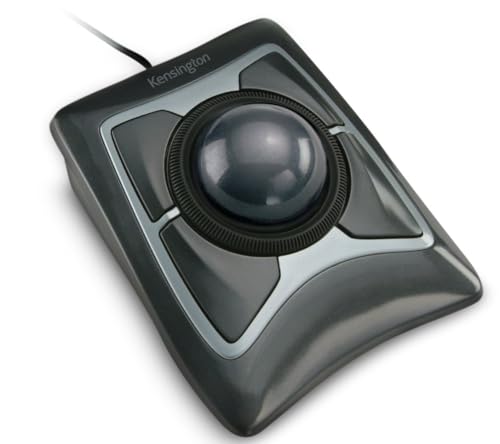
- Large 55mm ball for precise control
- Scroll ring for quick page navigation
- Four customizable buttons and ambidextrous design
Best For: Students doing detailed work at a fixed desk
Quiet Multi-Device Pick
Nulea Wireless Tilt-Stand Trackball
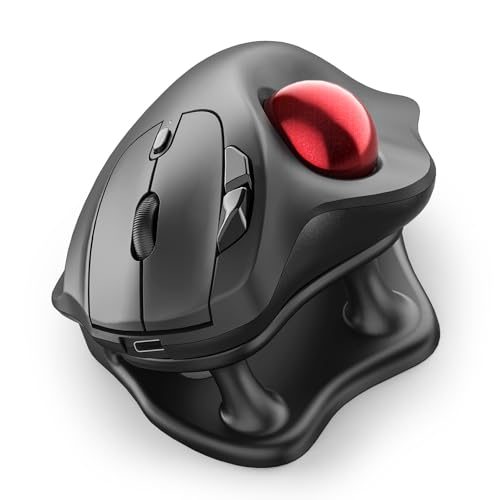
- Silent operation for libraries and shared spaces
- Pairs with up to three devices
- 21.7° tilt and four DPI levels
Best For: Students needing quiet, multi-device control
Premium Comfort Choice

- 20° tilt with a contoured ergonomic grip
- Up to 120 days on a full charge
- Customizable buttons through Logi Options+
Best For: Students wanting customization and long battery life
Large-Hand Rechargeable Pick

- 16° angle for a natural forearm position
- Three-device Bluetooth and 2.4G switching
- 15-minute charge supports a full day
Best For: Students with medium to large hands
Best Comfort Pick – Logitech ERGO M575S
For students comparing computer trackballs for students, the Logitech ERGO M575S is a comfortable wireless option for long study sessions. Its sculpted right-handed shape, thumb control, and quiet clicks are designed to reduce hand movement while fitting well in compact dorm or desk setups.
Best For: Students who want a polished, space-saving wireless trackball for everyday coursework.
Pros:
- Bluetooth and included Logi Bolt receiver provide flexible connectivity.
- Up to 18 months of battery life with the included AA battery.
- Three customizable buttons and adjustable cursor speed through Logi Options+.
- Works on any surface and supports Windows and macOS.
Cons:
- Right-handed design does not suit left-handed users.
- Only two primary buttons are listed in the specifications, despite customizable controls.
- Requires Windows 10 or later for the listed minimum operating system.
The M575S is a strong all-around student choice when comfort, wireless convenience, and minimal desk movement matter more than gaming-focused performance.
Best for Large Hands – PORLEI TM552 Large-Hand Trackball
Among computer trackballs for students, the wired PORLEI TM552 stands out for its large-hand-oriented shape and 44mm index-finger trackball. Its corded USB connection avoids battery management, while five DPI levels let students adjust cursor speed for writing, design work, and general computing.
Best For: Students with larger hands who prefer a substantial wired trackball for desks or flexible seating.
Pros:
- Large-hand ergonomic design with a 44mm finger-operated ball.
- Five customizable DPI levels support precise or faster cursor movement.
- USB-A connection is plug-and-play with Windows and macOS.
- Works on varied surfaces, including desks, couches, and beds.
Cons:
- Wired design limits portability and creates cable clutter.
- Forward and backward buttons are not supported on Mac systems.
- Not recommended for gaming according to the supplied product notes.
The TM552 makes the most sense for students who need extra room for their hand and value consistent wired operation over a compact wireless setup.
Best Ambidextrous Option – Kensington Orbit Wireless Trackball
The Kensington Orbit is a flexible choice for students seeking computer trackballs for students that can accommodate either hand. Its ambidextrous design, scroll ring, dual wireless connectivity, and adjustable DPI settings make it useful for reading documents, browsing research, and everyday coursework.
Best For: Shared study spaces and students who want a left- or right-handed wireless design with easy scrolling.
Pros:
- Ambidextrous shape works for right- and left-handed users.
- 2.4GHz and Bluetooth LE connectivity provide two wireless options.
- Scroll ring makes moving through documents and web pages convenient.
- Four DPI settings and KensingtonKonnect software support customization.
Cons:
- Windows ARM-based computers are not currently supported.
- Listed compatibility requires Windows 11 or macOS.
- Uses two AA batteries rather than a rechargeable battery.
Choose the Orbit when versatility is a priority. The ambidextrous layout and scroll ring are especially useful for students who alternate between users or spend significant time reading online.
Best Budget Wired Pick – PORLEI TM551 RGB Trackball
For students evaluating computer trackballs for students on a budget, the wired PORLEI TM551 offers thumb control, six buttons, adjustable DPI, and RGB lighting. Its 34mm ball is suited to tight desks, while the 1.8m cable provides a stable connection without drivers.
Best For: Students who want an affordable wired trackball with extra controls and a colorful desktop accent.
Pros:
- Ergonomic right-handed shape helps keep the palm in a natural position.
- Five DPI settings range from 100 to 1200 for speed or precision.
- Six-button layout includes back and forward buttons plus a scroll wheel.
- Works on Windows and macOS and can be used on varied surfaces.
Cons:
- Back and forward buttons are not compatible with Mac OS.
- Buttons are non-programmable.
- Wired operation may be less convenient for mobile study setups.
The TM551 is a practical pick for students who want ergonomic thumb control and useful navigation buttons without paying for wireless hardware.
Reliable Wired Pick – Kensington Orbit Trackball
For students seeking dependable computer trackballs for students, the Kensington Orbit offers precise optical tracking in a straightforward wired USB design. Its scroll ring, ambidextrous shape, and detachable wrist rest suit everyday coursework, browsing, and document work.
Best For: Students who want a simple, accurate trackball for extended desk use.
Pros:
- Optical tracking supports precise cursor movement with less hand travel.
- Scroll ring makes navigating webpages and documents convenient.
- Ambidextrous design and detachable wrist rest add flexibility and comfort.
- Software allows button-function and cursor-speed customization.
Cons:
- Wired USB connectivity limits portability compared with wireless models.
- Only two buttons are available for customization.
- Mac software support is listed for Mac OS 13 Ventura and later.
This is a practical choice for a study desk where reliable connection and easy scrolling matter more than wireless convenience or extensive controls.
Flexible Wireless Pick – SABLUTE MAM1 Pro Trackball
The SABLUTE MAM1 Pro stands out among computer trackballs for students who switch between devices or study in shared spaces. It combines Bluetooth and 2.4GHz connectivity with an adjustable angle, rechargeable battery, quiet clicks, and multiple DPI settings.
Best For: Students who need wireless flexibility, quiet operation, and adjustable ergonomics.
Pros:
- Connects with up to three devices using Bluetooth and 2.4GHz wireless.
- Adjustable 0° or 18° angle supports different hand positions.
- Rechargeable USB-C battery and stored receiver are convenient for mobile study.
- Five DPI levels, quiet buttons, and eight buttons provide customization.
Cons:
- Right-handed design is less flexible for left-handed users.
- New trackball users may need one to two weeks to adjust.
- The downloadable driver is not compatible with Mac OS.
Its broad wireless compatibility and ergonomic adjustments make it especially versatile for students moving between a laptop, tablet, and desktop, provided the right-handed layout fits.
Precision Control Pick – Kensington Expert Trackball
Kensington Expert Trackball Mouse (K64325), Black Silver, 5"W x 5-3/4"D x 2-1/2"H
Check Price On AmazonFor students who want a larger control surface, the Kensington Expert uses a 55mm ball and Diamond Eye optical tracking for precise cursor movement. Its scroll ring, four customizable buttons, wrist rest, and wired USB connection make it suited to focused desk work.
Best For: Students who value a large trackball and customizable controls for detailed computer work.
Pros:
- Large 55mm ball is designed for precise cursor control.
- Patented scroll ring helps scan through pages efficiently.
- Four buttons and software support customization of functions and speeds.
- Ambidextrous design and detachable wrist rest accommodate different users.
Cons:
- Wired USB-A connectivity is less convenient for mobile setups.
- ChromeOS users receive basic HID functions but cannot customize through KensingtonKonnect.
- Windows ARM-based computers are not currently supported by the software.
This model is a strong desk-based option when precise control and extra programmable buttons are more important than a compact or wireless design.
Quiet Multi-Device Pick – Nulea Wireless Tilt-Stand Trackball
For students comparing computer trackballs for students, the Nulea M511 is a practical option for quiet study areas and multitasking. Its thumb-controlled ball, 21.7° tilt stand, wireless connectivity, and adjustable DPI support comfortable navigation during lectures, research, and extended desk work.
Best For: Students who need silent operation and quick switching between up to three devices.
Pros:
- Completely silent trackball, buttons, and scroll wheel suit libraries and shared spaces.
- Bluetooth and USB receiver connections support up to three paired devices.
- Four DPI settings from 400 to 1600 allow slower precision or faster movement.
- Rechargeable, right-handed ergonomic design includes a 21.7° tilt stand.
Cons:
- Designed for right-handed use.
- Buttons are not programmable.
- Requires Windows 11 or macOS 14 Sonoma according to the listed minimum requirements.
The Nulea stands out when quiet clicks and multi-device convenience matter most. Its fixed button functions make it less flexible for shortcut-heavy workflows, but the tilt angle and silent controls are useful for everyday student productivity.
Premium Comfort Choice – Logitech MX Ergo S Trackball
The Logitech MX Ergo S is a premium choice among computer trackballs for students who prioritize ergonomic support and customizable shortcuts. Its 20° tilt, contoured grip, rechargeable battery, and dual wireless connectivity are suited to long study sessions on a desktop or tablet.
Best For: Students with medium- to large-sized hands who want advanced customization and long battery life.
Pros:
- 20° tilt and sculpted grip are designed to support a more comfortable forearm posture.
- Up to 120 days of use on a full charge, with up to 24 hours from a one-minute charge.
- Bluetooth and included Logi Bolt receiver enable dual wireless connectivity.
- Six customizable buttons and Smart Actions are available through the Logi Options+ app.
Cons:
- Its ergonomic shape is intended for medium- to large-sized hands.
- Charging cable is not included.
- Right-handed design may not suit left-handed students.
The MX Ergo S is the strongest fit for students who will use customization tools and value extended battery life. It costs more than a basic trackball-style option, but its adjustable controls and ergonomic construction make it well suited to demanding daily coursework.
Large-Hand Rechargeable Pick – TECKNET Vertical Trackball
The TECKNET Wireless Trackball is worth considering for students shopping for computer trackballs for students who need precise control in a compact workspace. Its 16° vertical angle, rechargeable 500mAh battery, silent operation, and three-device connection make it useful for study desks and extended browsing.
Best For: Students with medium to large hands who want a rechargeable trackball with broad device compatibility.
Pros:
- 16° vertical angle is designed to promote a more natural forearm position.
- Bluetooth and 2.4G wireless connections support up to three devices.
- A 15-minute charge can provide a full day of use, according to the supplied notes.
- Five DPI levels from 100 to 1200 support adjustable cursor control.
Cons:
- The larger 5.5-by-4.1-by-2-inch design may feel bulky for smaller hands.
- The manufacturer recommends one to two weeks of familiarization.
- Right-handed design limits suitability for left-handed users.
The TECKNET offers a useful balance of ergonomic positioning, battery convenience, and flexible connectivity. Its larger shape can be comfortable for the intended hand sizes, though students with smaller hands should consider the adjustment period and dimensions carefully.
How We Picked the Best Computer Trackballs for Students
We focused on features that matter in real student workspaces: comfortable control during long sessions, dependable connectivity, compact desk use, useful scrolling, and reasonable setup requirements. The selection includes established models from Logitech and Kensington alongside alternatives with larger balls, adjustable angles, RGB lighting, rechargeable batteries, and different control placements.
We also considered whether each design suits a laptop, desktop, dorm desk, or shared study area. A premium trackball may offer smoother ergonomics and better customization, while a simpler wired model can be a practical choice for students who prioritize low cost and zero battery maintenance.
Quick Comparison
| Best For | Look For |
|---|---|
| Portable laptop use | Bluetooth, compact construction, and reliable battery life |
| Small desks | Trackball control, a stable base, and a low movement footprint |
| Long study sessions | Supportive hand shape, a comfortable button layout, and smooth scrolling |
| Large hands | A wider shell or larger index-finger ball |
| Precise creative work | A larger ball, adjustable sensitivity, and a stable wrist position |
| Budget-conscious buyers | Wired connectivity or a basic wireless model with standard batteries |
Key Buying Factors for Computer Trackballs for Students
Control Style and Hand Comfort
Thumb-control models are usually compact and easy to learn, but some users may prefer index-finger control for precision or to reduce thumb strain. Check the dimensions and button placement against your hand size before buying. An adjustable tilt can help you find a more natural wrist angle.
Connectivity and Power
Bluetooth is convenient for modern laptops and reduces the need for a USB receiver. Other wireless models use a dedicated receiver, which can provide simple plug-and-play operation. Wired options avoid charging and pairing altogether, making them useful for fixed desks. For wireless models, check battery type, charging method, and whether the device can be used while charging.
Scrolling, Sensitivity, and Compatibility
A scroll ring can be especially convenient for documents, spreadsheets, and web research. Adjustable pointer speed is valuable for detailed design work as well as large monitors. Confirm operating-system compatibility and review any software requirements before choosing a model with programmable controls.
Who Should Buy Which Computer Trackballs for Students?
Choose the Logitech Ergo M575S or a similar compact thumb-control model if you want an easy transition from a conventional mouse. The Logitech MX Ergo S is better suited to students who want premium ergonomics, USB-C charging, and a more refined long-term setup.
Kensington Orbit models are strong choices for students who prefer a scroll ring, while the Kensington Expert is worth considering for users who want a larger central ball and finger-based control. Large-handed users should look closely at the 44mm index-finger design. A rechargeable adjustable-angle model or the Nulea tilt design may suit students focused on wrist positioning.
Finally, choose a wired RGB or basic TECKNET model when affordability and straightforward setup matter most. Whichever option you select, keep the trackball centered near your keyboard and adjust pointer sensitivity gradually so you can work comfortably without excessive hand movement.