Color grading can feel intimidating when every adjustment depends on a mouse, keyboard shortcuts, or an uncalibrated display. The right control panel or color reference tool makes common corrections easier to repeat and helps you build a more consistent workflow.
This roundup covers dedicated DaVinci Resolve hardware, flexible editing consoles, customizable studio controllers, and calibration tools for capture and display accuracy. Use the buying guide below to narrow the options by workflow, budget, and experience level.
Best 10 Beginner-Friendly Color Grading Control Panels Picks for 2026
Resolve-Focused Precision
DaVinci Resolve Micro Color Panel
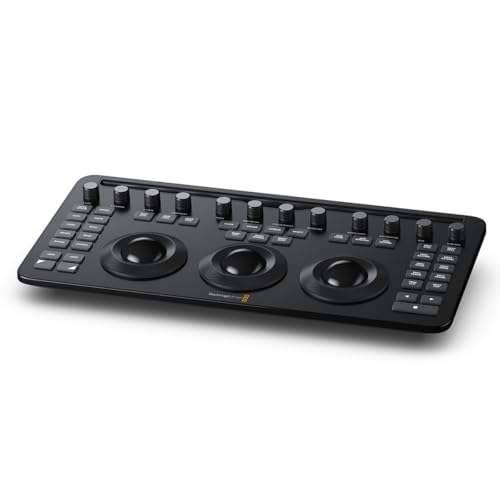
- Three trackballs for hands-on grading
- 12 color controls and 40 navigation buttons
- Bluetooth 5.1 LE and USB-C
Best For: DaVinci Resolve Studio color grading
Compact Workflow Starter
TourBox NEO Editing Controller

- 14-control compact creator layout
- Customizable presets for creative apps
- Works with Windows and macOS
Best For: Beginners sharing one controller across creative software
OLED Feedback Surface
Tangent Wave2 Large OLED Panel

- High-resolution optical trackerballs
- Resettable knobs with optical pickups
- OLED indicators show modes and functions
Best For: Hands-on grading with visible control feedback
Custom Creative Command Center
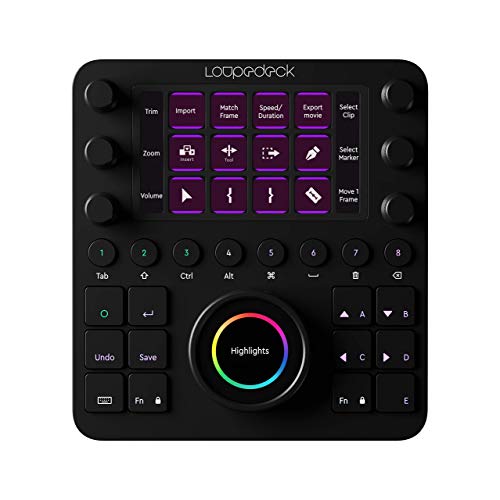
- Predefined workspaces for quick setup
- Custom buttons, wheels, dials, and touchscreens
- Integrates with DaVinci Resolve and other apps
Best For: Multi-application creative workflows
Flexible Studio Control

- LCD keys, touch strip, and dials
- Customizable multi actions and profiles
- Plugins for creative studio apps
Best For: Beginners needing flexible studio shortcuts and tactile control
Capture-to-Display Confidence

- Display 123 monitor colorimeter
- ColorChecker Passport Video 2 included
- Supports exposure and camera matching
Best For: Creators building a consistent capture-to-edit color workflow
Professional Display Accuracy

- Monitor and projector profiling
- Supports many modern display types
- Includes i1Profiler and PANTONE software
Best For: Editors prioritizing calibrated displays over tactile grading controls
Advanced Video Color Reference

- Works with vector scopes for color consistency
- Includes five specialized glossy target cards
- Supports hybrid photo and video workflows
Best For: Video creators matching cameras and lenses
Pro Calibration Pair
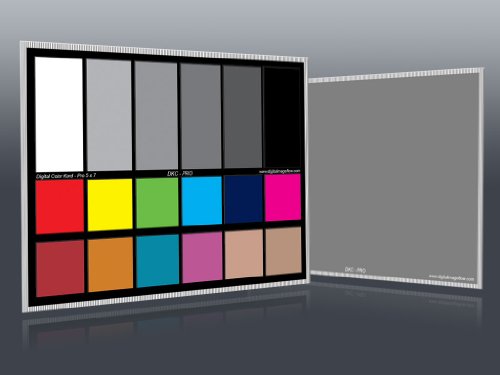
- Provides 12% and 18% gray references
- Adds 18 color patches per chart
- Includes stands and a user guide
Best For: Photography white balance and correction
RAW Exposure Reference

- Sets white balance, exposure, contrast, and black point
- Uses a 3D design with a black trap
- Can provide presets for similarly lit images
Best For: RAW photographers standardizing image adjustments
Resolve-Focused Precision – DaVinci Resolve Micro Color Panel
The Blackmagic Design DaVinci Resolve Micro Color Panel is a focused option for creators seeking beginner-friendly color grading control panels with dedicated hands-on controls. Its three trackballs, 12 color correction controls, and navigation buttons are designed specifically for DaVinci Resolve Studio workflows.
Best For: DaVinci Resolve Studio users who want dedicated trackballs and transport controls in a compact desktop panel.
Pros:
- Three trackballs provide dedicated color-control hardware.
- Includes 12 color correction controls and 40 navigation/transport buttons.
- Supports Bluetooth 5.1 LE and USB-C connectivity.
- Backed by a listed two-year warranty.
Cons:
- Its stated compatibility is centered on DaVinci Resolve Studio.
- It has one listed USB-C port and does not include a power plug.
This is the most purpose-built choice here for Resolve color work. Buyers using other editing applications should verify software compatibility before choosing it.
Compact Workflow Starter – TourBox NEO Editing Controller
The wired TourBox NEO suits creators who want beginner-friendly color grading control panels without committing to a large dedicated grading surface. Its 14 controls, dial, scroll wheel, D-pad, and customizable software support color grading alongside photo, video, and design work.
Best For: Beginners and multitaskers who need one compact controller for color grading and broader creative applications on Windows or macOS.
Pros:
- Compact layout with 14 dedicated controls.
- Supports color grading, video editing, illustration, and photo editing.
- Ready-made presets provide a starting point for supported applications.
- Controls can be customized through TourBox Console.
Cons:
- Wired USB operation may be less flexible than wireless hardware.
- It does not support iPadOS, iOS, Linux, or Android.
- It is a general creative controller rather than a dedicated color panel.
The NEO is a practical entry point when versatility matters more than specialized trackballs. Its compact design and configurable controls can help new users build a repeatable workflow gradually.
OLED Feedback Surface – Tangent Wave2 Large OLED Panel
The Tangent Wave2 combines a compact control surface with trackerballs, optical-pickup knobs, and OLED displays. For shoppers comparing beginner-friendly color grading control panels, its visual mode and function indicators can make physical controls easier to understand during operation.
Best For: Users who want dedicated trackerballs, resettable knobs, and display feedback in a durable desktop color-grading surface.
Pros:
- High-resolution trackerballs use long-life optical pickups.
- Knobs include built-in press-to-reset switches.
- OLED displays indicate the mode and function of many controls.
- USB connectivity and a compact form factor support desktop use.
Cons:
- The supplied notes do not identify specific supported color-grading software.
- Buyers should confirm compatibility with their operating system and application.
- Its listed wireless feature may require clarification before purchase.
The Wave2 is appealing when tactile grading controls and on-panel information are priorities. Because software support is not specified in the supplied details, compatibility checking is especially important.
Custom Creative Command Center – Loupedeck Creative Tool
Loupedeck Creative Tool - Professional Custom Editing Console for Photo, Video, Music and Design
Check Price On AmazonThe Loupedeck Creative Tool is a broad creative console for users who want beginner-friendly color grading control panels that also handle photo, video, music, and design tasks. Predefined workspaces and application integrations provide a starting point, while custom profiles let users adapt the controls to their workflow.
Best For: Creative users who want customizable controls across DaVinci Resolve, Adobe applications, Final Cut Pro, and other supported software.
Pros:
- Offers native integrations across photo, video, music, and streaming software.
- Predefined tools and workspaces are available out of the box.
- Buttons, touchscreens, wheels, and dials can be customized.
- Includes profiles such as DaVinci Resolve and Cubase.
Cons:
- Its wide range of functions may require setup and customization.
- It is a general creative console rather than a dedicated grading-only panel.
- The supplied notes do not specify current software-version compatibility.
This is a strong fit for users who want one control surface to grow with several creative applications. Its predefined profiles help shorten setup, while customization supports more advanced workflows over time.
Flexible Studio Control – Stream Deck +
For creators exploring beginner-friendly color grading control panels, the Elgato Stream Deck + offers tactile dials, a touch strip, and visual feedback through LCD keys. It is a customizable studio controller that can also manage audio, video, lighting, and supported apps.
Best For: Beginners who want one flexible controller for creative-app shortcuts, audio mixing, and general studio tasks.
Pros:
- Tactile dials, a touch strip, and LCD keys provide clear hands-on feedback.
- Multi Actions and Smart Profiles can trigger sequences and switch configurations by app.
- Supports plugins for tools including OBS, Camera Hub, Wave Link, YouTube, and Spotify.
- Drag-and-drop setup and USB-C connectivity support a straightforward installation.
Cons:
- Its supplied features emphasize broad studio control rather than dedicated color-grading controls.
- Requires a corded USB connection and compatible Mac or PC software.
The Stream Deck + is a versatile entry point for users who want physical controls and customizable shortcuts, though dedicated color work may require configuring compatible software or plugins.
Capture-to-Display Confidence – Calibrite Creator Kit
The Calibrite Creator Kit is a strong choice for beginner-friendly color grading control panels when consistent color matters from capture through editing. It combines the Display 123 colorimeter for monitor calibration with the ColorChecker Passport Video 2 for exposure, white-balance, and camera-matching references.
Best For: Photographers, filmmakers, and hybrid creators who want a guided color-management workflow across cameras and displays.
Pros:
- Combines monitor profiling with an on-set ColorChecker reference.
- Helps establish white point and verify exposure during capture.
- Supports matching multiple cameras in changing or mixed lighting.
- Designed to improve consistency from capture through final post-production.
Cons:
- It is a color-management and reference kit, not a tactile grading control surface.
- The supplied notes do not specify software compatibility details or update support.
For beginners building reliable color habits, this kit addresses the foundation of grading accuracy: controlled capture and a trustworthy monitor. It is less suitable if physical knobs and buttons are the priority.
Professional Display Accuracy – X-Rite ColorChecker Classic
The X-Rite ColorChecker Classic is worth considering alongside beginner-friendly color grading control panels if display accuracy is your main concern. Its supplied package includes an i1Display colorimeter and software for display and projector profiling, with support for modern display technologies and mobile calibration through ColorTRUE.
Best For: Creators who need monitor or projector calibration and want a colorimeter-based foundation for editing and grading.
Pros:
- Supports monitor and projector profiling with the included colorimeter and software.
- Measures ambient light and is designed for fast display measurements.
- Works with display types including LED, Plasma, RG Phosphor, OLED, and wide-gamut screens.
- Includes PANTONE Color Manager software and offers mobile-app compatibility through ColorTRUE.
Cons:
- It provides display calibration rather than tactile controls for adjusting a grade.
- The supplied product details identify the model as i1Display Pro, which may require careful compatibility checking.
- Warranty coverage is listed as 12 months with registration required within 30 days.
This is a calibration-focused tool rather than a control panel, but it can make a beginner’s grading setup more dependable by helping ensure the display is profiled before making color decisions.
Advanced Video Color Reference – SpyderCheckr Video
For creators looking for beginner-friendly color grading control panels, the Datacolor SpyderCheckr Video offers a practical starting point for capturing more consistent color before post-production. Its color targets work with vector scopes and support workflows involving multiple cameras and lenses.
Best For: Video creators who want a comprehensive reference tool for camera matching, white balance, and color correction.
Pros:
- Includes conventional color, Color Pattern, greyscale, neutral gray, and focus star cards.
- Color Pattern Card shows hues at two saturation levels across primary and secondary colors.
- Glossy targets support high saturation, a wider color gamut, and easier flare identification.
- Replaceable, interchangeable cards support photo/video hybrid workflows.
Cons:
- Its advanced multi-card design may be more than a casual user needs.
- The cards are intended to support color correction rather than provide physical grading controls.
This is a strong choice when consistency across cameras matters. The ergonomic case and broad selection of reference cards make it a flexible investment for a growing video workflow.
Pro Calibration Pair – DKC-Pro Color Charts
The DKC-Pro set is a straightforward option for beginners exploring color calibration alongside beginner-friendly color grading control panels. Two 5-by-7-inch charts combine gray references and color patches for white balance, exposure setting, and post-production correction.
Best For: Photographers and editors who want a compact pair of tabletop calibration charts for still-image workflows.
Pros:
- Includes precise 12% and 18% gray references for white balance and exposure.
- Each chart has 18 color patches for digital color correction.
- n-Chrome-coated targets are designed for saturation, luminance, and color accuracy.
- Includes a frame stand and user guide for tabletop use.
Cons:
- The supplied notes focus on photography software such as Photoshop and Lightroom rather than video grading applications.
- Its rectangular chart format provides fewer specialized references than a multi-card video kit.
With two matching charts and built-in stands, this set is easy to position and repeat across a shoot. It is best suited to users prioritizing basic, repeatable calibration over a broader video-target system.
RAW Exposure Reference – SpyderCube
The Datacolor SpyderCube gives beginners a compact, visual way to establish RAW-processing references when building a workflow around beginner-friendly color grading control panels. Its three-dimensional design helps set white balance, exposure, contrast, and black point for images captured under the same lighting.
Best For: RAW photographers who want to create a reference image and apply consistent corrections across a series.
Pros:
- Uses white faces, a chrome ball, a black face, and a black trap for tonal and color references.
- Its 3D form helps reveal primary and secondary light sources.
- A SpyderCube image can serve as a preset reference for similarly lit images.
- Integrates with Photoshop, Lightroom, and Premiere Pro.
Cons:
- It is designed primarily for RAW photo processing rather than a full video color-chart workflow.
- The three-dimensional target may require more interpretation than a flat color chart.
This is a useful choice for photographers who want repeatable tonal adjustments without managing a larger chart set. Its black trap and multiple surfaces make it especially practical for checking contrast and exposure limits.
How We Picked These Beginner-Friendly Color Grading Control Panels
We selected products that can make color work more accessible without requiring a full professional grading suite. The list includes tactile control surfaces, programmable editing consoles, and reference tools that improve white balance, exposure, monitor accuracy, or shot matching. We considered software compatibility, setup complexity, portability, control layout, calibration usefulness, and whether the product offers a clear benefit to someone learning color correction.
These categories are not direct substitutes. A control panel speeds up hands-on adjustments, while a color chart, colorimeter, or gray reference helps you capture and evaluate color more accurately.
Quick Comparison
| Best For | Product Type | What to Look For |
|---|---|---|
| Dedicated Resolve grading | Color panel | Trackballs, knobs, buttons, and native workflow support |
| Multi-app editing | Programmable console | Custom profiles, shortcut access, and broad software compatibility |
| Compact studio control | Macro or streaming controller | Flexible mappings, displays, and desk-friendly design |
| Capture and shot matching | Color chart or gray card | Consistent references for white balance and exposure |
| Monitor accuracy | Display colorimeter | Calibration software, supported displays, and repeatability |
Key Buying Factors
Choose the Right Control Style
Trackballs and dedicated grading knobs provide direct, tactile feedback for lift, gamma, gain, saturation, and similar adjustments. Programmable consoles are more versatile, but they may require profile setup before they feel natural. If you mainly use DaVinci Resolve, a purpose-built panel is usually the simplest starting point.
Check Software and Connection Requirements
Confirm compatibility with your editing or grading application before buying. Some devices rely on USB and desktop software, while others integrate more directly with a specific program. Also check whether custom mappings, firmware updates, or paid software features are required.
Separate Capture Accuracy from Display Accuracy
A ColorChecker, gray card, or SpyderCube helps establish a reliable reference while shooting. A colorimeter calibrates the monitor used to judge the result. For dependable work, these solve different problems and can complement rather than replace one another.
Consider Desk Space and Learning Curve
Large panels offer more simultaneous controls but need a permanent workspace. Compact controllers are easier to travel with and may suit small editing desks. Beginners should favor clear labeling, useful presets, and a layout they can practice consistently.
Who Should Buy Which Beginner-Friendly Color Grading Control Panels?
Choose a dedicated grading panel if you want the fastest path to tactile color correction in DaVinci Resolve. Choose a programmable editing console if you edit photos, video, music, or design work across several applications. Choose a compact macro controller when desk space is limited or you want customizable shortcuts alongside your keyboard and mouse.
Choose a color chart or gray reference if inconsistent lighting and white balance are your main problems. Choose a monitor colorimeter if your footage looks different across screens or you need a more trustworthy display for grading decisions. For a complete beginner-friendly setup, pair a practical controller with a dependable capture reference, then add display calibration as your accuracy needs grow.