Choosing the right control surface can make 4K grading faster, more precise, and less tiring. The best setup depends on your software, studio space, monitoring chain, and need for tactile control.
We’ve compared 10 options ranging from dedicated DaVinci Resolve panels to compact creative controllers and specialized live-video hardware, so you can find the right fit for your workflow.
Best 10 Color Grading Control Panels for 4K Workflows Picks for 2026
Best Dedicated Resolve Panel
DaVinci Resolve Micro Color Panel
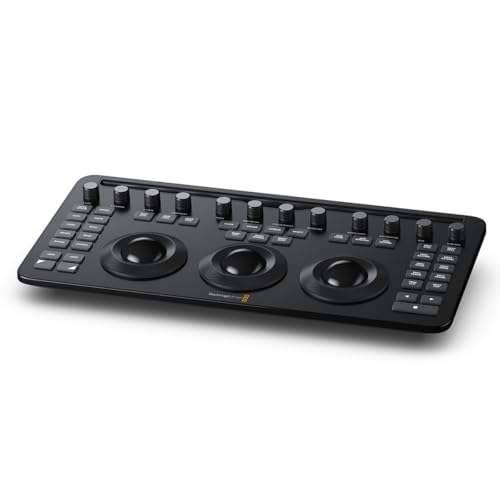
- Three trackballs for hands-on grading
- 12 correction controls and 40 navigation buttons
- Bluetooth 5.1 LE and USB-C connectivity
Best For: DaVinci Resolve Studio colorists wanting a compact dedicated panel
Best Compact Multi-App Controller
TourBox NEO Editing Controller

- 14 customizable controls in a small desktop unit
- Supports color grading and other creative workflows
- Compatible with Windows and macOS
Best For: Creators using multiple editing, design, and photo applications
Best OLED-Focused Surface
Tangent Wave2 Color Grading Panel

- High-resolution trackerballs and optical knobs
- Press-to-reset switches on the knobs
- OLED displays show modes and functions
Best For: Colorists wanting tactile controls with onboard visual feedback
Best Resolve Editing Companion

- Built-in search dial for timeline navigation
- Bluetooth and USB connectivity
- Includes DaVinci Resolve 17 Studio activation card
Best For: Resolve editors needing compact transport and edit controls
Best for LED Video Wall Control

- Four HDMI 2.0 and two DP1.2 4K inputs
- Multi-window control for up to eight screens
- 16 presets with LAN, RS-232, and USB control
Best For: Large LED video walls and multi-screen monitoring
Best for Fairlight Audio Control
Fairlight Console Channel Control

- 12 groups of touch-sensitive knobs and buttons
- Controls up to 192 parameters per channel
- LCD feedback for precise adjustments
Best For: Fairlight audio mixing and post-production suites
Best for Color-Critical 4K Monitoring
BenQ PV3250U 32-inch 4K Monitor

- 4K resolution with 100% Rec.709/sRGB coverage
- 16-bit 3D LUT and hardware calibration
- Thunderbolt 4 with up to 96W power delivery
Best For: Color grading, video editing, and calibrated 4K review
Broadcast Compositing Powerhouse

- Real-time HD, Ultra HD, and 8K compositing
- Advanced color science and spill suppression
- Quad Link 12G-SDI connectivity
Best For: Live broadcast compositing and virtual-set workflows
Live Replay Operator Deck

- T-bar for precise playback-speed adjustment
- Jog wheel for timeline navigation
- 29 programmable LED-backlit buttons
Best For: vMix replay and multi-camera live playback
LED Wall Signal Hub

- 4K UHD processing at up to 60Hz
- Pixel-level brightness and chroma calibration
- HDMI, DisplayPort, and DVI inputs
Best For: 4K LED walls, signage, and live-event displays
Best Dedicated Resolve Panel – DaVinci Resolve Micro Color Panel
The Blackmagic Design DaVinci Resolve Micro Color Panel is a focused option for color grading control panels for 4K workflows, especially when your work centers on DaVinci Resolve Studio. Its three trackballs, 12 color-correction controls, and navigation buttons provide hands-on access in a compact desktop form.
Best For: DaVinci Resolve Studio users who want dedicated color controls without a full-size panel.
Pros:
- Three trackballs and 12 color-correction controls support tactile grading.
- Includes 40 navigation and transport buttons for workflow control.
- Supports Bluetooth 5.1 LE and USB-C connectivity.
- Compact 14.33-by-7.18-inch design weighs 1.2 kg.
Cons:
- Designed specifically for DaVinci Resolve Studio workflows.
- Only one listed port is provided.
- No power plug is included.
This is the most purpose-built choice here for Resolve color work. Choose it when tactile grading controls matter more than broad application compatibility.
Best Compact Multi-App Controller – TourBox NEO Editing Controller
The TourBox NEO is a compact, wired alternative for color grading control panels for 4K workflows when you also edit photos, illustrations, or video. Its 14 dedicated controls, dial, scroll function, and D-pad can be customized through TourBox Console for supported Windows and macOS applications.
Best For: Creators who want one small controller for color grading, editing, design, and photo applications.
Pros:
- Provides 14 dedicated controls in a compact 370 g design.
- Supports customized application presets and workflow-based functions.
- Works with Windows 8 or later 64-bit and macOS 10.13 or later.
- Includes a USB cable, travel bag, and quick-start guide.
Cons:
- USB wired connectivity may be less convenient than wireless control.
- Not compatible with iPadOS, iOS, Linux, or Android devices.
- Offers general creative control rather than dedicated grading trackballs.
The NEO makes sense for mixed creative work where portability and customization are priorities. It is less specialized than a dedicated Resolve panel but more adaptable across applications.
Best OLED-Focused Surface – Tangent Wave2 Color Grading Panel
The Tangent Wave2 is a dedicated control surface for color grading control panels for 4K workflows, combining trackerballs, optical-pickup knobs, and OLED displays. Its compact format is suited to editors who want physical grading controls and visual feedback from the panel.
Best For: Colorists seeking a compact panel with OLED mode and function displays.
Pros:
- High-resolution trackerballs use long-life optical pickups.
- High-resolution knobs include press-to-reset switches.
- OLED displays indicate control modes and functions.
- USB connectivity and listed wireless support offer flexible setup options.
Cons:
- The supplied notes do not identify specific grading software compatibility.
- Its 11.4-by-15.3-inch format requires dedicated desk space.
- Control layout is more specialized than a general editing controller.
Wave2 is a strong fit when tactile trackball and knob control, plus onboard visual feedback, are central to your setup. Confirm software compatibility before buying for a particular 4K application.
Best Resolve Editing Companion – DaVinci Resolve Speed Editor
The Blackmagic Design DaVinci Resolve Speed Editor is a compact editing keyboard that complements color grading control panels for 4K workflows. Its built-in search dial, tactile shortcuts, and Bluetooth or USB connectivity prioritize fast timeline and editing operations within DaVinci Resolve.
Best For: DaVinci Resolve editors who need portable transport and edit controls alongside a grading setup.
Pros:
- Built-in search dial supports timeline navigation.
- Keyboard shortcuts match editing functions.
- Compact, portable design includes a built-in battery.
- Bundle includes a DaVinci Resolve 17 Studio activation card.
Cons:
- Its 17-key layout is focused on editing rather than dedicated color correction.
- The listed minimum systems are macOS 14 Sonoma and Windows 11.
- It is not a replacement for a full color-grading control surface.
This is best viewed as an editing and transport companion rather than a primary grading panel. It is a practical choice for Resolve users who value a compact search dial and fast edit commands.
Best for LED Video Wall Control – A6000 4K Video Wall Processor
The VDWall A6000 is a video wall processor rather than a hands-on grading panel, but its 4K inputs, multi-window layouts, and Faroudja image processing make it useful for routing and reviewing color-critical content across large LED installations. For color grading control panels for 4K workflows, it fits best as a display-management component in a studio, control room, venue, or live-event setup.
Best For: Large LED video walls, multi-screen monitoring, and professional presentation environments that need flexible 4K routing and display control.
Pros:
- Supports four HDMI 2.0 and two DP1.2 4K inputs, plus SDI, CVBS, and DVI connectivity.
- Handles up to eight screens with multi-window mosaic, scaling, overlays, and synchronized control.
- Offers Faroudja Real Color, TrueLife processing, and 10-bit DCDI de-interlacing.
- Stores 16 user presets and includes LAN, RS-232, and USB control.
Cons:
- Designed for LED video wall processing, not direct color-grading parameter control.
- Its rack-mount form factor and 11-pound weight may be excessive for a desktop workflow.
- Requires compatible LED panels or display infrastructure to realize its full value.
The A6000 is a strong choice when the workflow challenge is managing multiple 4K feeds and large-format displays. It is less suitable if you specifically need tactile grading controls such as dedicated wheels, trackballs, or channel knobs.
Best for Fairlight Audio Control – Fairlight Console Channel Control
The Blackmagic Design Fairlight Console Channel Control is an audio-focused surface, not a picture-grading interface, but it can complement color grading control panels for 4K workflows in an integrated post-production suite. Its touch-sensitive knobs, illuminated buttons, and LCD feedback provide fast, assignable access to Fairlight channel and bus parameters.
Best For: Fairlight users who need expanded tactile control over audio channels, adjacent faders, or the master bus alongside a video-grading setup.
Pros:
- Provides 12 groups of touch-sensitive control knobs and illuminated buttons.
- Can be assigned to a single channel, 12 adjacent fader channels, or the master bus.
- Offers access to up to 192 parameter controls per channel.
- LCD monitoring gives visual feedback while making adjustments.
Cons:
- Controls Fairlight audio parameters rather than color-grading adjustments.
- Its usefulness depends on having a compatible Fairlight console or workflow.
- At 24.41 inches wide and 11.44 pounds, it requires dedicated desk space.
This panel is best viewed as an audio-control expansion for a broader post-production system. Choose it for Fairlight mixing efficiency, not as a replacement for a dedicated 4K color-grading panel.
Best for Color-Critical 4K Monitoring – BenQ PV3250U 32-inch 4K Monitor
The BenQ Creative Pro PV3250U is a 32-inch 4K monitor built for color grading and video editing. Among color grading control panels for 4K workflows, it serves as the visual reference display, combining a 16-bit 3D LUT, hardware calibration, broad Rec.709 coverage, and shadow-detail features for more consistent review and delivery.
Best For: Editors and colorists who need a large, color-accurate 4K reference monitor with hardware calibration and Mac-friendly Thunderbolt 4 connectivity.
Pros:
- Delivers 3840 × 2160 resolution with 100% sRGB/Rec.709 and 99% DCI-P3 coverage.
- Uses a 16-bit 3D LUT and hardware calibration for more predictable color work.
- 3000:1 contrast and Rec.709 Gamma 2.4 tuning help reveal shadow gradation.
- Thunderbolt 4 supports video, data, and up to 96W power delivery over one cable.
Cons:
- It is a monitor, not a tactile control panel with dedicated grading wheels or knobs.
- The 38.8-pound weight makes repositioning less convenient.
- Its 32-inch size and included features may be more than needed for smaller desks.
The PV3250U is the most directly relevant option here for color-critical 4K picture work. Pair it with a dedicated grading surface if you want tactile adjustments, while relying on this display for calibrated visual judgment.
Broadcast Compositing Powerhouse – Ultimatte 12 8K
The Blackmagic Design Ultimatte 12 8K is not a traditional grading control panel, but it can be a strong companion for color-sensitive 4K workflows involving live compositing, virtual sets, and broadcast graphics. Its real-time processing, color separation, and 12G-SDI connectivity make it suited to demanding video environments.
Best For: Live-action keying, broadcast graphics, virtual sets, and workflows that may scale from 4K to 8K.
Pros:
- Supports HD, Ultra HD, and 8K processing through a Quad Link 12G-SDI design.
- Uses advanced algorithms and color science for improved color fidelity.
- Provides edge handling, color separation, and spill suppression for compositing.
Cons:
- It is a compositing processor rather than a hands-on color grading control panel.
- Its live broadcast focus may be more specialized than needed for conventional post-production grading.
Choose the Ultimatte 12 8K when compositing and color-accurate live production are central to the workflow. For direct tactile grading, pair it with a dedicated control surface or software interface.
Live Replay Operator Deck – RP400 vMix Controller
The RP400 is primarily a replay controller, not a color grading control panel, so its role in 4K workflows is centered on live playback and camera management rather than image correction. Its dedicated controls can help operators navigate and replay footage efficiently in vMix-based production setups.
Best For: vMix replay operators managing live playback across up to four camera channels.
Pros:
- Smooth T-bar provides precise playback-speed control.
- Jog and shuttle controls support timeline navigation and setting in/out points.
- Offers 29 programmable, dual-color LED-backlit buttons.
- Supports USB, LAN, and RS-232 connectivity and can be USB powered.
Cons:
- Does not provide dedicated color grading controls.
- Its supplied software support is focused on vMix Replay.
- Replay-oriented controls may have limited value in a color-finishing suite.
The RP400 makes sense when playback control is the priority alongside a 4K live production system. It should be viewed as an operational replay surface, not as a substitute for grading hardware.
LED Wall Signal Hub – MCTRL4K Video Processor
The MCTRL4K is an LED display controller rather than a tactile color grading panel, but its pixel-level brightness and chroma calibration can be relevant when delivering consistent 4K content to large LED displays. It combines broad input support with low-latency processing for demanding event, signage, and control-room installations.
Best For: 4K LED video walls, digital signage, live events, and control-room displays requiring pixel calibration.
Pros:
- Supports up to 4096×2160 at 60Hz and custom dimensions up to 7680 pixels wide or high.
- Provides pixel-level brightness and chroma calibration for more uniform displays.
- Accepts HDMI 2.0, DisplayPort 1.2, and dual-link DVI inputs.
- Supports 8-bit, 10-bit, and 12-bit signals, plus HDR10 and HLG.
Cons:
- It is designed for LED display control, not creative color grading.
- Its installation and event-focused feature set may be excessive for a desktop 4K suite.
- The unit weighs about 10.14 pounds and is intended for larger-scale systems.
For LED-wall delivery, the MCTRL4K offers useful calibration and signal-management capabilities around a 4K workflow. For editing or grading decisions, use it alongside dedicated software and a purpose-built control surface.
How We Picked the Best Color Grading Control Panels for 4K Workflows
We evaluated each product for tactile control, software compatibility, 4K workflow relevance, build quality, connectivity, desk footprint, and the type of work it supports. Dedicated grading panels received priority for hands-on color correction, while editing controllers, monitoring hardware, and live-production systems were considered for specialized workflows.
Because “control panel” can mean different things across post-production, this list includes practical options for independent editors, colorists, broadcast teams, live-event operators, and larger facilities. Buyers should confirm current software support, included accessories, and licensing details before ordering.
Quick Comparison
| Best For | Recommended Type | Why It Stands Out |
|---|---|---|
| Dedicated color grading | DaVinci Resolve control panel | Purpose-built knobs, trackballs, and buttons |
| Portable creative editing | Compact multi-control surface | Saves space and supports customizable shortcuts |
| Professional panel layouts | Large OLED grading panel | More expansive tactile access and visual feedback |
| Editing-first Resolve work | Editing keyboard or speed controller | Fast timeline navigation and trimming |
| Live video and display systems | Video wall or replay controller | Designed for switching, playback, processing, or display control |
| Audio post-production | Channel control surface | Hands-on Fairlight mixing and automation |
Key Buying Factors for Color Grading Control Panels for 4K Workflows
Software and Workflow Compatibility
Start with the applications you use most. DaVinci Resolve panels are optimized for Resolve, while general-purpose controllers may depend on keyboard mapping, plug-ins, or custom profiles. Check whether the product supports your operating system, software version, and preferred control protocol.
Control Layout and Precision
Colorists should look for responsive trackballs, rings, knobs, and dedicated controls for lift, gamma, gain, contrast, saturation, and navigation. A compact device may be convenient, but a larger panel can reduce menu diving and improve repeatability on demanding 4K projects.
Resolution, Monitoring, and Color Accuracy
A control surface cannot compensate for an unsuitable monitor. Pair it with a properly calibrated 4K display, reliable video output, and a viewing environment with controlled lighting. For HDR or professional delivery, verify supported signal formats, bit depth, color space, and monitoring hardware separately.
Connectivity and Installation
Check USB, Bluetooth, Ethernet, SDI, HDMI, DVI, and power requirements carefully. Live-production and LED-processing hardware may require rack space, dedicated cabling, or specialist installation, unlike desktop editing controllers.
Ergonomics and Expansion
Consider how much desk space you have, whether you grade for long sessions, and whether the surface can grow with your system. Backlit controls, OLED displays, adjustable profiles, and modular expansion can be valuable in a busy studio.
Who Should Buy Which Color Grading Control Panels for 4K Workflows?
- Dedicated colorists: Choose a purpose-built DaVinci Resolve panel with trackballs and grading controls.
- Editors who also grade: A compact controller or Resolve editing surface can improve navigation without taking over the desk.
- Large post-production facilities: Favor full-size panels or modular Fairlight hardware that supports shared, repeatable workflows.
- Live-event and broadcast teams: Select replay controllers, video processors, or display controllers only when their specialized inputs and outputs match the installation.
- Independent creators: Prioritize compatibility, portability, and value over advanced rack-mounted processing features.
The best choice is the one that matches your actual signal chain and software habits. Treat dedicated grading panels as precision input devices, and treat video processors, LED controllers, monitors, and replay systems as complementary equipment rather than interchangeable alternatives.