The best color grading control panels for video editing can make precise adjustments faster and more tactile than a mouse and keyboard. The right console gives you convenient access to wheels, dials, joysticks, buttons, and shortcuts without overwhelming your desk or workflow.
This roundup covers dedicated color-grading hardware alongside flexible editing controllers, wireless consoles, and useful color-reference tools. Use the buying guide below to narrow the choices by software support, control layout, connectivity, and budget.
Best 10 Color Grading Control Panels for Video Editing Picks for 2026
Dedicated Resolve Control
DaVinci Resolve Micro Color Panel
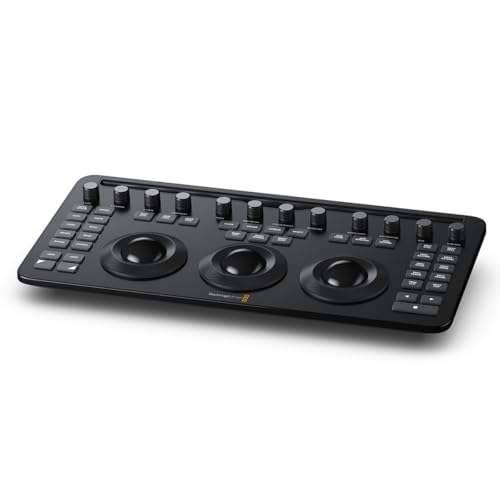
- Three trackballs for hands-on grading
- 12 correction controls and 40 transport buttons
- Bluetooth 5.1 LE and USB-C connectivity
Best For: DaVinci Resolve Studio colorists
Custom Creator Console
Loupedeck Live Editing Controller
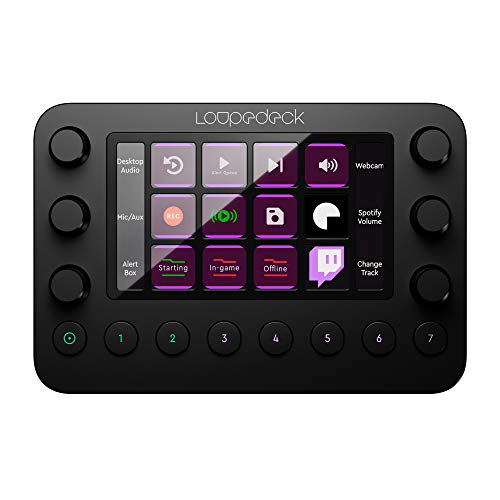
- Profiles for major editing and streaming apps
- Custom pages, shortcuts, macros, and icons
- Haptic dials, buttons, and LED touchscreen
Best For: Multi-application creators and video editors
Compact Workflow Controller
TourBox NEO Editing Controller

- 14 dedicated controls in a compact layout
- Presets and custom functions for creative apps
- USB-connected Windows and macOS support
Best For: Space-conscious editors and creative professionals
Camera Matching Reference
Calibrite ColorChecker Video Target

- Vectorscope-optimized color chips
- Gray steps for waveform and exposure checks
- Reverse-side neutral white-balance target
Best For: Multi-camera video production and grading prep
Premium Workflow Controller

- Haptic, variable-speed tactile control
- Customizable editing and color functions
- Wireless or USB-C operation on Windows/macOS
Best For: Editors seeking a refined, customizable tactile workflow
On-Set Color Reference
SpyderCheckr Video Color Checker

- Supports vector-scope-based color matching
- Includes five specialized reference cards
- Replaceable cards suit hybrid photo/video work
Best For: Shooters who need consistent color references before grading
Joystick Editing Console
XPPen Pilot Pro Wireless Console

- Joystick supports DaVinci Resolve grading
- Three rotaries handle timeline and fine adjustments
- Tri-mode connectivity with 24-hour battery
Best For: Editors wanting tactile, programmable one-handed control
Compact Creative Control

- Eight customizable wired controls
- Ergonomic tactile operation
- Windows and macOS support
Best For: Compact shortcut control for desktop creative apps
Advanced All-in-One Control

- 14 tactile customizable controls
- Bluetooth and USB-C connectivity
- DaVinci Resolve-specific features
Best For: Flexible video editing and color workflow control
Timeline Scrubbing Specialist

- Jog and shuttle timeline controls
- 15 programmable shortcut buttons
- Automatic app profile detection
Best For: Frame-accurate video timeline navigation
Dedicated Resolve Control – DaVinci Resolve Micro Color Panel
The Blackmagic Design DaVinci Resolve Micro Color Panel is a purpose-built option for editors seeking color grading control panels for video editing in DaVinci Resolve Studio. Its three trackballs, dedicated correction controls, and transport buttons put frequently used grading and navigation functions within reach.
Best For: DaVinci Resolve Studio users who want a compact, dedicated grading panel for desktop or laptop workflows.
Pros:
- Three trackballs support hands-on color adjustment.
- Includes 12 color correction controls and 40 navigation/transport buttons.
- Supports Bluetooth 5.1 LE and USB-C connectivity.
- Compact 14.33-by-7.18-inch footprint with a 2-year warranty.
Cons:
- Designed specifically for DaVinci Resolve Studio rather than general-purpose software control.
- USB-C is the only listed port, and no power plug is included.
This is the most specialized choice in the group. If DaVinci Resolve Studio is your main editing environment, its dedicated trackballs and grading controls should offer a more direct workflow than a general shortcut controller.
Custom Creator Console – Loupedeck Live Editing Controller
The Loupedeck Live is a flexible option among color grading control panels for video editing, combining customizable dials, buttons, and an LED touchscreen. Ready-made profiles support several editing applications, while custom profiles and macros let you adapt the console to other software.
Best For: Video editors and content creators who want one compact controller for editing, streaming, photo work, and operating-system controls.
Pros:
- Ready-made profiles are available for Premiere Pro, After Effects, Final Cut Pro, and other applications.
- Custom profiles, pages, shortcuts, macros, and icons support detailed personalization.
- Haptic analog dials, customizable buttons, and an LED touchscreen provide varied tactile controls.
- Compact aluminum body measures approximately 6 by 8 by 2 inches.
Cons:
- Its broad feature set may require setup time to tailor for a specific grading workflow.
- Some listed integrations are platform-specific, including Streamlabs on Windows and Capture One Pro 21 on macOS.
Loupedeck Live favors versatility over dedicated color hardware. It is a practical fit when editing, streaming, photo adjustments, and system controls all need to share one customizable desktop console.
Compact Workflow Controller – TourBox NEO Editing Controller
The TourBox NEO provides a compact, shortcut-focused approach to color grading control panels for video editing. Its 14 dedicated controls—including a dial, D-pad, buttons, and scroll controls—are designed to keep common actions close while presets and TourBox Console software adapt the layout to different applications.
Best For: Editors who want a small wired controller for Premiere Pro, color grading, photo editing, illustration, and other customized creative workflows.
Pros:
- Offers 14 dedicated controls in a compact desktop design.
- Supports video editing and color grading workflows through application presets.
- TourBox Console enables customized shortcuts and purpose-built creative functions.
- Includes a USB cable and travel bag, with Windows and macOS compatibility.
Cons:
- Wired USB connectivity only; wireless operation is not listed.
- Not compatible with iPadOS, iOS, Linux, or Android devices.
- Provides general creative controls rather than dedicated color trackballs.
NEO is a strong space-saving alternative to a keyboard-and-mouse workflow. Choose it when customizable physical controls matter more than a dedicated colorist panel layout.
Camera Matching Reference – Calibrite ColorChecker Video Target
The Calibrite ColorChecker Video is not a control surface, but it supports the front end of workflows using color grading control panels for video editing. Its vectorscope- and waveform-optimized chips, gray steps, skin tones, and reverse-side white-balance target help establish consistent footage before editing and final grading.
Best For: Video crews matching multiple cameras, checking exposure and contrast, and setting a neutral white balance in changing or mixed lighting.
Pros:
- Chromatic chips are arranged for vectorscope-based color evaluation.
- Large gray steps support waveform, zebras, and false-color exposure checks.
- Includes skin tones, grayscale references, illumination check chips, and a neutral white-balance side.
- Designed to help match multiple cameras for more consistent color rendition.
Cons:
- It is a physical color target, not an editing controller or grading panel.
- Its value depends on using compatible camera monitoring and editing tools.
For reliable grading, accurate source footage matters as much as the control interface. This two-sided target can complement a grading panel by giving editors and camera operators a repeatable reference for color, exposure, and white balance.
Premium Workflow Controller – TourBox Elite
The TourBox Elite is a wireless creative console for editors who want refined, tactile control over color grading, timeline navigation, and image adjustments. Its customizable controls and haptic feedback can reduce reliance on the mouse while keeping key editing functions close at hand.
Best For: Video editors and colorists using DaVinci Resolve, Premiere, Lightroom, Capture One, or Camera Raw on Windows or macOS.
Pros:
- Haptic feedback, variable-speed control, and fine increments support precise adjustments.
- Customizable controls cover timeline work, transform, crop, opacity, and color settings.
- Workspace Recognition can shift presets across editing, grading, audio mixing, and delivery.
- Dual-channel Bluetooth and USB-C support flexible wired or wireless use.
Cons:
- Not compatible with iPad, iOS, Linux, or Android devices.
- Its extensive customization may require setup time.
The Elite is a strong choice among color grading control panels for video editing when tactile feedback and a personalized workflow matter more than a conventional button layout.
On-Set Color Reference – SpyderCheckr Video Color Checker
The Datacolor SpyderCheckr Video is a compact color reference kit rather than a hardware control surface. It helps establish more consistent footage across cameras and lenses by pairing color targets with vector-scope-based video workflows.
Best For: Videographers and colorists who need an on-set reference for camera matching, white balance, exposure checks, and post-production color correction.
Pros:
- Designed to work with vector scopes for color accuracy and consistency.
- Includes color cards, a gradient greyscale card, neutral grey card, and focus star card.
- Its Color Pattern Card shows hues at two saturation levels across primary and secondary colors.
- Replaceable cards can also work with SpyderCheckr Photo cards for hybrid workflows.
Cons:
- It does not provide physical controls for directly adjusting editing software.
- Glossy cards may require careful handling to avoid flare or reflections.
For color grading control panels for video editing, this product serves as a useful supporting reference: it improves capture consistency before the footage reaches the grading interface.
Joystick Editing Console – XPPen Pilot Pro Wireless Console
The XPPen Pilot Pro combines an all-way joystick, three rotary controls, programmable buttons, and tactile feedback for hands-on editing. It is especially suited to color grading control panels for video editing when fast timeline movement, frame-by-frame precision, and shortcut access are priorities.
Best For: DaVinci Resolve, Premiere Pro, and other creative users on Mac or Windows who want one-handed control with multiple connection options.
Pros:
- The joystick is designed for one-step color grading in DaVinci Resolve.
- Three rotaries provide separate high-speed timeline, precision, and adjustment control.
- Nineteen buttons and seven themes support more than 100 programmable commands.
- Bluetooth 5.3, 2.4G wireless, and USB-C provide flexible connectivity.
Cons:
- The rechargeable battery is rated for 24 hours of continuous use, requiring regular charging for intensive work.
- Its broad shortcut and theme system may take time to configure.
With an ergonomic contoured body, Z-axis motor vibration, and an interactive HUD, the Pilot Pro is a versatile option for editors who prefer tactile, eyes-free operation over a flat shortcut keyboard.
Compact Creative Control – TourBox Lite
The TourBox Lite is a compact wired option for creators who want frequently used controls within reach. While it is designed primarily for drawing, its customizable actions and app-specific presets can also make it useful for selected color grading control panels for video editing workflows.
Best For: Creators who want an affordable, tactile shortcut controller for desktop creative apps.
Pros:
- Eight customizable controls for actions such as zooming, undoing, tool switching, and brush adjustment.
- Ergonomic shape with a scroll control, knob, and raised buttons for touch-based operation.
- Supports app-specific presets, automatic preset switching, and on-screen TourBox HUD guidance.
- Compatible with Windows 7 or later 64-bit systems and macOS 10.13 or later.
Cons:
- Wired-only design limits placement flexibility.
- Not compatible with iPad, iOS, Linux, or Android devices.
- Its eight-control layout is less extensive than larger editing consoles.
The TourBox Lite is best viewed as a simple, adaptable shortcut companion rather than a dedicated colorist panel. It suits users who value a small footprint and tactile control over a large number of dedicated grading controls.
Advanced All-in-One Control – TourBox Elite Plus
The TourBox Elite Plus combines a 14-key layout with Bluetooth or USB-C connectivity and broad platform support. For shoppers comparing color grading control panels for video editing, it stands out as a flexible controller with features specifically listed for DaVinci Resolve and other creative applications.
Best For: Editors and color-focused creators who want one customizable controller across multiple devices and applications.
Pros:
- Fourteen tactile controls provide more input options than the TourBox Lite.
- Supports Bluetooth and USB-C connections across Windows, macOS, iPadOS, and Android.
- Includes DaVinci Resolve Hover Adjust, Shuttle Browse & Playback, and other application-specific tools.
- Interactive HUD and D-Pad guidance can display live key mappings while you work.
Cons:
- Requires two AA batteries for wireless operation.
- The USB cable and custom travel bag require an accessory-kit version.
- It is a general creative console, not a traditional dedicated panel with labeled grading wheels.
With its larger control set, wireless flexibility, and DaVinci Resolve-oriented features, the Elite Plus is the strongest fit here for users seeking a versatile editing and grading companion. Its customizable design also leaves room to adapt controls as software workflows change.
Timeline Scrubbing Specialist – Contour ShuttlePRO v2
The Contour ShuttlePRO v2 focuses on timeline navigation, pairing a spring-loaded jog wheel and shuttle dial with 15 programmable buttons. It is a practical choice for video editors who want fast scrubbing and shortcut access alongside color grading control panels for video editing.
Best For: Video editors who prioritize frame-accurate scrubbing, timeline control, and programmable shortcuts.
Pros:
- Spring-loaded jog wheel and shuttle dial support frame-by-frame navigation and smooth timeline movement.
- Fifteen programmable buttons can trigger shortcuts and macros.
- Automatically detects active software and switches profiles.
- Ambidextrous, compact design fits comfortably in one hand and uses little desk space.
Cons:
- Its controls emphasize transport and shortcuts rather than dedicated color adjustment.
- USB connectivity requires a wired setup.
- Designed for personal computers, so compatibility should be checked for a particular editing system.
The ShuttlePRO v2 is a strong companion for editors who spend substantial time navigating timelines. It does not replace a panel built around dedicated color wheels, but its jog-and-shuttle controls can make cutting, reviewing, and positioning footage more efficient.
How We Picked the Best Color Grading Control Panels for Video Editing
We selected products based on the type and quality of hands-on controls, compatibility with popular video-editing software, customization options, connection method, desk footprint, and overall workflow value. Dedicated DaVinci Resolve hardware receives special consideration for direct grading control, while programmable consoles are judged by how easily they can be configured for editing, effects, and color shortcuts.
Color-reference products are included separately because accurate grading depends on reliable white-balance and color references, even though they are not control surfaces themselves.
Quick Comparison
| Best For | Recommended Type | What to Look For |
|---|---|---|
| Dedicated color grading | DaVinci Resolve panel | Trackballs, rings, knobs, and Resolve integration |
| Custom editing workflows | Programmable console | Assignable buttons, dials, joysticks, and profiles |
| Wireless setups | Bluetooth editing controller | Battery life, stable connection, and software support |
| Color accuracy | Video color target | White-balance reference and chart layout |
| Timeline navigation | Jog-wheel controller | Responsive shuttle, jog, and programmable keys |
Key Buying Factors for Color Grading Control Panels
Control Layout and Precision
Look for controls that match your work. Trackballs and rings are useful for lift, gamma, gain, and other tonal adjustments, while rotary encoders suit parameter changes. A jog wheel helps with frame-accurate timeline navigation, and programmable buttons can reduce repetitive keyboard shortcuts.
Software Compatibility and Customization
Check support for your editor before buying. DaVinci Resolve, Adobe Premiere Pro, Final Cut Pro, and other applications may require dedicated profiles or manual mapping. A highly customizable console can be more useful than a specialized panel if you switch between programs.
Wired Versus Wireless Connectivity
Wired models typically offer simple setup and consistent performance. Wireless controllers reduce cable clutter and can be repositioned easily, but they require charging and may depend on Bluetooth compatibility or configuration software.
Size, Ergonomics, and Build
Measure your available desk space and consider whether you want one-handed shortcut access or two-handed grading control. Controls should be easy to reach without forcing an awkward wrist position. Metal construction can improve stability, while compact designs are better for mobile or shared workstations.
Color-Reference Accuracy
A control panel cannot correct inaccurate footage by itself. If reliable color is important, pair the console with a video color checker or white-balance target and use a properly calibrated display. This is especially valuable for matching cameras and maintaining consistent skin tones.
Who Should Buy Which Color Grading Control Panels for Video Editing?
Choose the Blackmagic Design panel if DaVinci Resolve is your main application and you want dedicated, tactile grading controls. Choose a TourBox, Loupedeck, or XPPen console if you need customizable controls for editing, color, effects, and shortcuts across a broader workflow.
Choose the Contour ShuttlePRO v2 if timeline scrubbing and transport control are priorities. Choose a SpyderCheckr or ColorChecker Video target if your biggest need is consistent color reference rather than physical grading controls. For occasional editors, a compact wired controller may offer the best value; frequent colorists should prioritize precision, software integration, and ergonomic access over the lowest price.