If you’re starting your journey in digital art, choosing the right Wacom tablet can make all the difference. With a variety of models tailored for beginners, it’s crucial to find one that fits your style and needs. From compact designs to those offering extensive features, each option has something unique to offer. Curious about which tablets stand out and what factors to ponder? Let’s explore the best choices for your creative endeavors.
Wacom Intuos Small Bluetooth Graphics Drawing Tablet

The Wacom Intuos Small Bluetooth Graphics Drawing Tablet is perfect for beginners who want a seamless and intuitive drawing experience. Weighing just 8.8 ounces and measuring 7.87 x 6.3 inches, it’s compact and easy to carry. With 4096 levels of pressure sensitivity, you’ll feel like you’re drawing on paper. It connects wirelessly via Bluetooth or through a USB cable, making it versatile for any setup. Plus, the customizable ExpressKeys let you streamline your workflow. You’ll enjoy access to creative software and online training, ensuring you get the most out of your digital art journey. Embrace your creativity with Wacom!
Best For: Beginners and hobbyists looking for a portable and user-friendly drawing tablet experience.
Pros:
- Lightweight and compact design makes it easy to transport.
- High pressure sensitivity (4096 levels) offers a natural drawing feel.
- Wireless connectivity options (Bluetooth and USB) provide flexible setup.
Cons:
- Limited to a small drawing area, which may not suit advanced users.
- Customizable ExpressKeys may require time to learn and optimize.
- May need additional software purchases for full functionality beyond the included options.
HUION Inspiroy H1060P Graphics Drawing Tablet

For aspiring artists and hobbyists, the HUION Inspiroy H1060P Graphics Drawing Tablet stands out with its impressive 8192 levels of pressure sensitivity, allowing you to create detailed and nuanced artwork. With a working area of 10 x 6.25 inches, it offers ample space for creativity. Weighing just 1.69 pounds, it’s portable and easy to handle. The battery-free PW100 stylus supports ±60° tilt, enhancing your drawing experience. You’ll love the 12 programmable press keys and 16 soft keys for shortcuts. Compatible with various operating systems and design software, this tablet is perfect for both beginners and professionals alike.
Best For: Aspiring artists, hobbyists, and professionals seeking a versatile and portable drawing tablet for detailed artwork creation.
Pros:
- 8192 levels of pressure sensitivity provide detailed and nuanced control over artwork.
- Lightweight and portable design (1.69 pounds) makes it easy to carry and use anywhere.
- Customizable shortcut keys enhance workflow efficiency for various functions like erase, zoom, and scroll.
Cons:
- Limited compatibility with iPhones/iPads and potential cursor issues with SAMSUNG Galaxy S series.
- USB adapter required for Mac connections, which may add extra cost.
- May require adjustment period for users transitioning from traditional drawing methods to digital art.
One by Wacom Medium Drawing Tablet
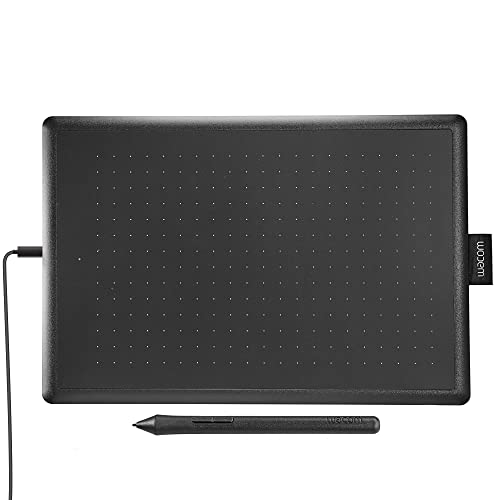
Designed specifically for students and beginners, the One by Wacom Medium Drawing Tablet makes digital art accessible and enjoyable. With its compact size of 10.9 x 7.4 inches, it’s perfect for digital drawing, photo editing, and visual communication. The tablet features an active area of 8.5 x 5.3 inches, and the included Wacom Pen offers 2048 levels of pressure sensitivity for precise control. Plus, its plug-and-play setup is certified for Chromebook, ensuring compatibility across various systems like Windows, Mac, and Linux. You’ll appreciate the virtually lag-free tracking and battery-free pen, making your creative process smooth and hassle-free.
Best For: Students and beginners looking for an accessible and user-friendly drawing tablet for digital art and educational purposes.
Pros:
- Plug-and-play setup certified for Chromebook, ensuring easy connectivity and compatibility with various systems.
- Battery-free pen with 2048 levels of pressure sensitivity provides precise control and eliminates the need for recharging.
- Compact size makes it portable and ideal for both digital drawing and photo editing.
Cons:
- Limited active area of 8.5 x 5.3 inches may not be sufficient for more complex or larger art projects.
- No wireless connectivity, requiring a USB connection to operate with devices.
- Basic features may not satisfy advanced users looking for more sophisticated drawing capabilities.
Wacom One Bluetooth Drawing Tablet

Ideal for budding artists and designers, the Wacom One Bluetooth Drawing Tablet offers a seamless introduction to digital creativity. With medium dimensions of 9.9 x 7.1 inches and an active area of 8.5 x 5.3 inches, it’s perfect for drawing and photo editing. The included Wacom One Pen features natural tilt recognition and 4096 pressure sensitivity for precise control. Plus, customizable shortcut buttons let you quickly access essential functions, enhancing your workflow. Compatible with Windows, Mac, Chromebook, and Android devices, it connects effortlessly via USB-C. The package includes everything you need to start creating immediately, including a power adapter and quick start guide.
Best For: Budding artists and designers looking for an entry-level drawing tablet to enhance their digital creativity.
Pros:
- Versatile Compatibility: Works seamlessly with Windows, Mac, Chromebook, and Android devices.
- High Precision: Features 4096 levels of pressure sensitivity and natural tilt recognition for detailed artwork.
- User-Friendly: Customizable shortcut buttons on the pen enhance workflow and efficiency.
Cons:
- Limited Active Area: The drawing area may feel small for users accustomed to larger tablets.
- Requires Adapter for Some Devices: Older devices may need a USB-A adapter for connection.
- Entry-Level Features: Advanced users might find the features insufficient for professional-grade work.
Wacom MovinkPad 11 Android Mobile Drawing Tablet

The Wacom MovinkPad 11 Android Mobile Drawing Tablet stands out as an excellent choice for aspiring artists seeking a portable and user-friendly drawing solution. Weighing just 1.3 lbs, it features an 11-inch anti-glare screen that enhances your drawing experience. Equipped with a battery-free Slim Pro Pen 3 offering 8,192 pressure levels, you’ll enjoy precise control. The tablet runs on Android 14, supports major image formats, and includes the Wacom Canvas app along with two years of Clip Studio Paint Debut. With 128 GB storage and lightweight design, it’s perfect for creating art on the go.
Best For: Aspiring artists and creatives looking for a portable, user-friendly drawing tablet that offers precision and versatility.
Pros:
- Lightweight design at just 1.3 lbs, making it easy to carry for on-the-go creativity.
- High sensitivity with 8,192 pressure levels for precise drawing control.
- Includes Wacom Canvas app and two years of Clip Studio Paint Debut for enhanced artistic capabilities.
Cons:
- Limited to Android operating system, which may restrict app compatibility for some users.
- Nonstandard battery may require specific replacements, complicating battery management.
- Screen size may be small for users accustomed to larger drawing surfaces.
HUION Inspiroy H640P Drawing Tablet

For beginners stepping into the world of digital art, the HUION Inspiroy H640P Drawing Tablet offers an impressive 8192 levels of pen pressure sensitivity, making it easy to create detailed and expressive designs. This lightweight tablet, weighing just 1.41 lbs and measuring 6×4 inches, is perfect for portability. Its battery-free PW100 stylus guarantees hassle-free drawing. You’ll appreciate the six customizable hotkeys, enhancing your workflow across various applications. Compatible with Mac, Windows, Linux, and Android, it’s versatile for any environment. Whether you’re signing documents or diving into creative software, the H640P provides a natural experience, ideal for budding artists like you.
Best For: The HUION Inspiroy H640P Drawing Tablet is best for beginners in digital art looking for an intuitive and portable drawing solution.
Pros:
- Supports 8192 levels of pen pressure sensitivity for detailed artwork.
- Lightweight and portable design, making it easy to carry around.
- Customizable hotkeys enhance workflow and efficiency in various applications.
Cons:
- Small drawing area (6×4 inches) may not be suitable for all users.
- Limited compatibility with some older software or systems.
- Learning curve for users transitioning from traditional drawing tools.
XPPen Drawing Tablet with Screen (Artist13.3 Pro)

With its 13.3-inch fully-laminated FHD display, the XPPen Artist13.3 Pro Drawing Tablet is perfect for beginners seeking an immersive drawing experience. You’ll appreciate the vibrant colors and wide viewing angles, making your art come alive. The battery-free stylus offers 8192 levels of pressure sensitivity, ensuring precise lines and smooth shading. Plus, with customizable shortcut keys and a sleek Red Dial, you can streamline your workflow. It’s compatible with popular software like Photoshop and Illustrator, so you can dive right into your creative projects. Weighing just 4.4 pounds, it’s portable enough to take wherever inspiration strikes.
Best For: Beginners and aspiring artists looking for an affordable, high-quality drawing tablet with a responsive display and versatile software compatibility.
Pros:
- High Color Accuracy: With an 88% NTSC coverage and vibrant display, your artwork appears colorful and true to life.
- Responsive Drawing Experience: The battery-free stylus offers 8192 levels of pressure sensitivity and 60° tilt support, providing a natural and precise drawing experience.
- Portable Design: Weighing only 4.4 pounds, the tablet is easy to carry, allowing artists to create anywhere inspiration strikes.
Cons:
- Limited Screen Size: The 13.3-inch display may feel small for some professional artists used to larger canvases.
- Potential Learning Curve: Beginners might take some time to fully utilize all the customizable features and shortcut keys.
- Software Compatibility Restrictions: While it works with many popular software options, some less common programs may not be supported.
XPPen Deco 01 V3 Drawing Tablet

Designed specifically for beginners, the XPPen Deco 01 V3 Drawing Tablet offers an impressive 16,384 levels of pressure sensitivity, allowing you to create detailed and nuanced artwork effortlessly. With a compact drawing area of 10 x 6.25 inches and 8 customizable hotkeys, this tablet enhances your workflow. Weighing just 2.2 pounds and only 8 mm thin, it’s perfect for artists on the go. The battery-free stylus features tilt support for better line control, and it connects easily via USB-C. Compatible with major software like Photoshop and Illustrator, it’s an excellent choice to kickstart your digital art journey!
Best For: Beginners looking to explore digital art with a user-friendly and portable drawing tablet.
Pros:
- High Pressure Sensitivity: Offers 16,384 levels for detailed artwork creation.
- Compact and Lightweight: Easy to carry at only 2.2 pounds and 8 mm thin, perfect for artists on the go.
- Customizable Hotkeys: Eight ergonomic shortcuts boost efficiency during artwork creation.
Cons:
- Limited Drawing Area: The 10 x 6.25 inches may feel small for some advanced users.
- USB-C Connection Only: Requires adapters for older USB connections, which may be inconvenient.
- Software Compatibility: While compatible with major software, some niche programs may not be supported.
XPPen StarG640 Digital Graphic Tablet (6×4 Inch)

The XPPen StarG640 Digital Graphic Tablet is an excellent choice for beginners in digital art, thanks to its compact 6×4 inch size and impressive 8192 levels of pressure sensitivity. Weighing just 6 ounces and only 2 mm thick, it’s perfect for on-the-go creativity. The battery-free PN01 stylus guarantees uninterrupted use, and programmable buttons allow for customizable functions. This tablet is compatible with Windows, Mac, and Chromebooks, making it versatile for online teaching and sketching. With a solid 4.3-star rating from users, you’ll find it easy to set up and use, although some note minor comfort concerns with the stylus.
Best For: The XPPen StarG640 Digital Graphic Tablet is best for beginners in digital art and those looking for a portable solution for sketching and online teaching.
Pros:
- Compact and lightweight design makes it easy to carry and use anywhere.
- High pressure sensitivity (8192 levels) allows for detailed and responsive artwork.
- Compatible with various operating systems, including Windows, Mac, and Chromebook.
Cons:
- Some users report discomfort with the stylus compared to other models.
- Occasional connection issues and lag, especially with Bluetooth.
- Concerns about durability have been noted by some customers.
GAOMON S620 Drawing Tablet
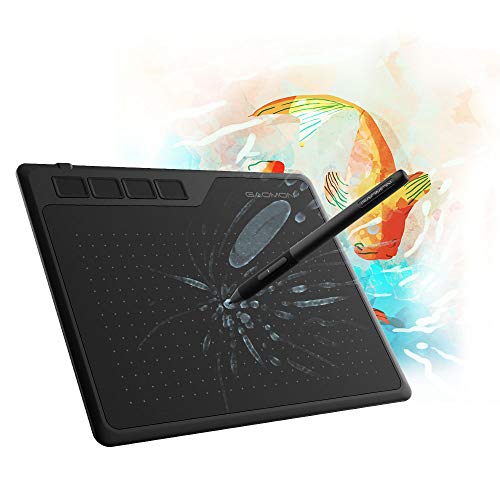
For aspiring digital artists and graphic designers, the GAOMON S620 Drawing Tablet stands out with its impressive 8192 levels of pen pressure, ensuring you achieve precise control over your creations. Its lightweight design makes it portable, perfect for on-the-go artists. With four customizable express keys, you can streamline your workflow. The battery-free pen means no charging hassles, while a 266 PPS report rate and 5080 LPI resolution enhance your performance. Compatible with major art programs and online meeting tools, it’s ideal for both creative projects and document signing. Enjoy a stable drawing experience with its anti-slip rubber feet.
Best For: Aspiring digital artists, graphic designers, and professionals seeking a portable drawing solution.
Pros:
- 8192 levels of pen pressure provide precise control for detailed artwork.
- Lightweight and portable design makes it easy to carry for on-the-go use.
- Customizable express keys streamline workflow for increased efficiency.
Cons:
- Not compatible with iPad or iPhone, limiting device flexibility.
- Requires installation of GAOMON Driver for optimal usage.
- Smaller drawing area may not suit all artists’ preferences.
Factors to Consider When Choosing Wacom Tablets for Beginners
When you’re choosing a Wacom tablet, consider factors like size and portability to match your workspace and lifestyle. You’ll also want to look at pressure sensitivity levels and compatibility with your devices and software. Customizable shortcut keys can enhance your workflow, making your creative process smoother.
Size and Portability
Choosing the right size for your Wacom tablet can make a big difference in how easily you can take it with you. Smaller models, typically weighing less than a pound, fit perfectly in your backpack, making them ideal for on-the-go use. For beginners, tablets with dimensions around 7 to 10 inches strike a great balance between drawing space and portability. A thinner profile, around 0.3 to 0.4 inches, adds to the lightweight design, ensuring easy transport without sacrificing your active drawing area. Most beginner-friendly tablets weigh under 2 pounds, allowing effortless handling. Plus, features like battery-free styluses enhance portability, eliminating the hassle of chargers or replacements while you travel, so you can focus more on your art.
Pressure Sensitivity Levels
Portability is important, but the way a tablet responds to your touch can greatly influence your drawing experience. Pressure sensitivity levels indicate how finely your tablet detects variations in pen pressure, enhancing realism in your digital art. For beginners, tablets usually offer sensitivity levels between 2048 and 8192, allowing smooth shifts between light and heavy strokes. A higher sensitivity level gives you more control, essential for nuanced line work and shading. If you prefer detailed artwork, look for tablets with 4096 to 8192 levels of sensitivity, as they enable better blending and shading techniques. Always consider how the pressure sensitivity aligns with your drawing style, as it can greatly affect your overall creative journey.
Compatibility With Devices
Compatibility is essential for a seamless drawing experience with your Wacom tablet. First, check if the tablet supports your operating system, as many models work with Windows, macOS, Chromebook, and Android devices. If you’re a Mac user, be aware that some tablets may need a USB adapter for connection. For students or educators, look for tablets certified for Chromebook to guarantee smooth functionality in educational settings. Also, verify that your tablet can connect via both USB and Bluetooth; this flexibility accommodates your device preferences. Finally, if you plan to use a mobile device, confirm that the tablet is compatible with your Android version, as some models may not support all smartphones or operating systems.
Software Compatibility Options
When selecting a Wacom tablet, software compatibility is a key factor that can greatly impact your creative process. Many Wacom tablets, like the Intuos series, work seamlessly across different operating systems such as Windows, macOS, Chromebook, and Android, offering versatility for all users. They often come bundled with software and online training, giving you access to valuable creative tools right out of the box. Most models support popular design programs, including Adobe Photoshop, Illustrator, and CorelDRAW, ensuring you can work with industry-standard applications. If you’re a student, some Wacom tablets are certified for Chromebook, meeting Google’s compatibility standards. This makes them excellent choices for educational environments and enhances your overall digital art experience.
Customizable Shortcut Keys
The right Wacom tablet can enhance your creative experience, and one feature that can make a significant difference is customizable shortcut keys. These keys let you streamline your workflow by assigning frequently used functions, like undo or brush size adjustment, to easily accessible buttons. Many beginner-friendly tablets offer between 4 to 12 customizable keys, improving your efficiency during creative tasks. With these keys, you won’t need to navigate through menus as often, making your drawing process more intuitive. Some tablets even allow you to adjust shortcut settings for different applications, catering to your specific software needs. By utilizing these customizable keys, you’ll reduce the learning curve of new software, allowing you to focus on honing your artistic skills.
Battery Life and Type
Choosing the right Wacom tablet means considering battery life and type, which can greatly affect your creative sessions. Some tablets feature rechargeable batteries, while others come with battery-free styluses, so you won’t need to worry about charging. Tablets with lithium-ion batteries usually last longer between charges, making them more reliable for extended use. Look for models with a battery status indicator, helping you keep track of power levels and avoid interruptions. Additionally, battery-free options tend to be lighter, enhancing portability for artists on the go. Always check the charging time and usage duration, as some tablets may require hours to charge fully but offer limited active use. This understanding guarantees you choose a tablet that fits your artistic lifestyle.
Price and Value
As you explore your options for Wacom tablets, price and value become key considerations. Typically, prices range from around $50 to over $300, so it’s essential to evaluate what each tablet offers. Look closely at features like pressure sensitivity, which can range from 2048 to 8192 levels, greatly enhancing your drawing experience. Don’t overlook included software and training resources—many tablets come with access to creative tools and online tutorials, boosting their value. Additionally, consider warranty and return policies; a 30-day return option can safeguard your investment. Finally, verify compatibility with various operating systems, as tablets certified for Chromebook or multiple OS can provide better long-term usability and flexibility for your digital art journey.