Choosing among professional pen display monitors can feel overwhelming because small spec differences have a big impact on comfort, color, and precision. The right display should match how you draw, edit, and work all day.
In this roundup, we focus on the features that matter most for creative professionals: screen quality, pen performance, calibration, and the controls that speed up real projects.
Best 10 Professional Pen Display Monitors Picks for 2026
Premium 27-Inch Studio Flagship

- 27-inch 4K UHD display with 10-bit color
- Wacom Pro Pen 3 with 8,192 pressure levels
- 120 Hz refresh, ExpressKeys, and touch gestures
Best For: High-end studio artists and color-critical creative work
Replacement Pen Accessory

- Replacement pen for select Clear Touch models
- Simple no-configuration accessory
- 90-day warranty and black plastic body
Best For: Users with supported Clear Touch displays who need a spare pen
Creative Workhorse Display

- 23.8-inch 2.5K QHD IPS display
- 20 shortcut keys and dual red dial wheels
- 8192-pressure stylus with 60° tilt support
Best For: Artists and editors who want shortcuts and a large creative workspace
Portable Pro Drawing Screen

- 15.6-inch 4K UHD portable pen display
- Wacom EMR ProArt Pen and 10-point touch
- 100% sRGB with Calman Verified calibration
Best For: Mobile creators who need a compact, accurate pen display
Precision Art Display
XPPen Artist 16 3rd 15.4" Pen Display
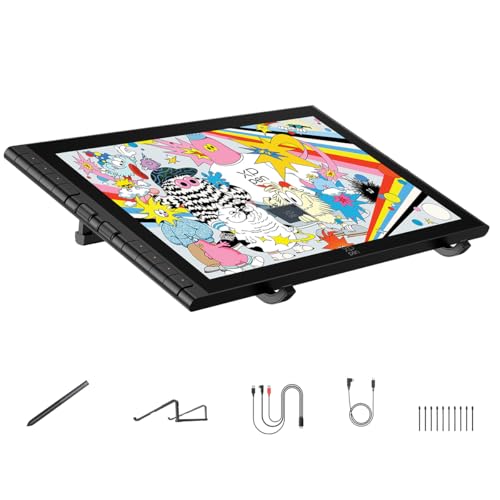
- 16K pressure sensitivity with low activation force
- 99% sRGB, 98% Adobe RGB, 97% Display P3
- 2 scroll wheels, 8 hotkeys, and included stand
Best For: Artists who want a compact, feature-rich pen display with strong color coverage.
Large Touch Studio
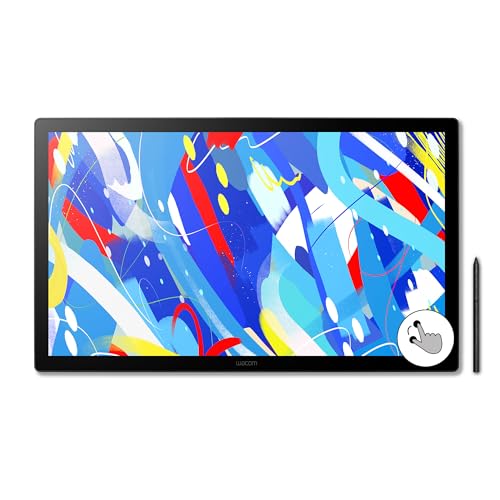
- 23.8-inch QHD IPS display for a roomy canvas
- 10-finger touch for zooming, rotating, and panning
- Pro Pen 3 with 8192 pressure levels and tilt support
Best For: Professionals who want a spacious display with touch gestures and Wacom pen performance.
Portable Dual-Screen Pick
EHOMEWEI X2 Air Dual Touch Monitor

- Dual 14.2-inch 2.5K IPS screens with 100% sRGB
- 10-point touch plus stylus support
- USB-C and HDMI connectivity for many devices
Best For: Users who want a portable stylus-enabled display for travel and multitasking.
Flagship Large-Format Pick

- 27-inch 4K canvas for detailed creative work
- Wide color support with factory calibration report
- PenTech 4.0 and multi-touch improve workflow
Best For: Large-studio artists who want a premium 27-inch pen display
Color-Managed Workhorse

- 99.43% Adobe RGB with Pantone and SkinTone validation
- Two battery-free pens plus 8192 pressure levels
- 40 programmable keys and OLED shortcut remote
Best For: Color-critical illustrators who want strong controls and comfort
Compact Value Option

- 15.6-inch full-laminated display reduces distraction
- 8 shortcut keys and Red Dial improve efficiency
- 8192-pressure battery-free stylus with 120% sRGB
Best For: Compact desks, students, and artists who want solid value
Premium 27-Inch Studio Flagship – Wacom Cintiq Pro 27
If you want professional pen display monitors for color-critical creative work, the Wacom Cintiq Pro 27 is built for high-end illustration, animation, VFX, and 3D projects. Its 27-inch 4K UHD screen, 10-bit color, and 99% Adobe RGB / 98% DCI-P3 coverage make it a serious studio display, while the 120 Hz refresh rate and Pen 3 help the drawing experience feel fast and responsive.
Best For: Studio artists and pros who want a large, color-accurate pen display with premium pen control.
Pros:
- 27-inch 4K UHD panel with 10-bit color and wide Adobe RGB / DCI-P3 coverage
- 120 Hz refresh rate for smoother pen and on-screen interaction
- Wacom Pro Pen 3 with 8,192 pressure levels and customizable grip/balance
- 8 ExpressKeys, touch gestures, and 4x 1/4-inch mount options for workflow flexibility
Cons:
- Large, premium setup may be more than casual users need
- Best suited to Windows and macOS systems that meet the listed OS support
- Higher-end feature set is aimed at serious creative workflows rather than basic note-taking
This is a flagship option for creators who care about screen size, color accuracy, and refined pen input. If your workflow depends on a large desktop display and pro-level customization, it stands out as one of the most capable pen display monitors in the lineup.
Replacement Pen Accessory – Clear Touch Compatible Stylus
This is a replacement pen accessory for select Clear Touch 4K HD flat panel LED display models, not a full pen display monitor. If you need a spare stylus for a compatible interactive touch display, this simple option focuses on basic replacement use rather than advanced creative features.
Best For: Owners of supported Clear Touch displays who need a replacement pen.
Pros:
- Designed as a replacement for listed compatible models
- Simple, no-configuration accessory
- Compact black plastic design
- 90-day warranty
Cons:
- Not a full pen display monitor
- Compatibility is limited to the models named by the seller
- Listing notes indicate you should verify button layout before buying
For shoppers comparing professional pen display monitors, this product is best viewed as a compatibility-specific accessory rather than a display itself. It only makes sense if you already own one of the supported Clear Touch models and need a replacement pen.
Creative Workhorse Display – XPPen Artist 24 Pro
The XPPen Artist 24 Pro is a strong pick among professional pen display monitors if you want a large screen, solid color coverage, and plenty of workflow controls. Its 23.8-inch 2.5K QHD panel delivers sharp detail, while the included battery-free styluses, 8192 pressure levels, tilt support, and 20 shortcut keys are geared toward long creative sessions.
Best For: Artists, designers, and editors who want a large, feature-rich display with shortcut-heavy workflow control.
Pros:
- 23.8-inch 2.5K QHD IPS display with anti-glare film and wide viewing angle
- 118% sRGB, 84% NTSC, and 90% Adobe RGB color coverage
- 20 shortcut keys plus dual red dial wheels for faster editing
- Battery-free stylus with 8192 levels of pressure sensitivity and 60° tilt
Cons:
- Lower resolution than 4K competitors
- Large desktop footprint may not suit smaller workspaces
- Best feature set is aimed at creative production rather than casual use
For creators who value productivity controls as much as pen performance, this display offers a lot of practical tools. It is especially appealing if you want a roomy tablet-style monitor without stepping all the way up to a 4K premium model.
Portable Pro Drawing Screen – ASUS ProArt PA169CDV
The ASUS ProArt PA169CDV brings professional pen display monitors into a more portable form factor, with a 15.6-inch 4K UHD IPS panel, 10-point multitouch, and a bundled ProArt Pen using Wacom EMR technology. It is aimed at creators who want strong color accuracy, tablet-style input, and a compact display that can travel more easily than a full-size desktop unit.
Best For: Mobile creators and professionals who want a compact, color-accurate pen display with pen and touch support.
Pros:
- 15.6-inch 4K UHD IPS screen with anti-glare coating
- Bundled ProArt Pen with Wacom EMR technology
- 100% sRGB, Calman Verified, and factory pre-calibrated to Delta E < 2
- ASUS Dial and Virtual Control Panel add shortcut-style productivity tools
Cons:
- Smaller screen size than desktop-focused pen displays
- 60 Hz refresh rate is basic compared with faster creative monitors
- Portable design may not suit users who want a large permanent workstation display
This model is a smart choice when color validation and portability matter more than size. If you want a compact pen display with serious accuracy credentials and useful creative controls, it covers a lot of ground.
Precision Art Display – XPPen Artist 16 3rd 15.4" Pen Display
If you’re comparing professional pen display monitors for illustration, animation, or detailed retouching, the XPPen Artist 16 3rd brings a strong mix of precision and workflow control. Its 16K stylus sensitivity, laminated anti-glare glass, and dual scroll wheels make it a practical choice for artists who want a responsive drawing surface without clutter.
Best For: Artists who want a compact, feature-rich pen display with strong color coverage and handy hardware controls.
Pros:
- 16,384 pressure levels with low activation force for smooth, precise line control
- AG+AF nano-etched glass reduces glare and fingerprints while keeping a paper-like feel
- 99% sRGB, 98% Adobe RGB, and 97% Display P3 coverage for color-focused work
- 2 scroll wheels, 8 shortcut keys, and included foldable stand improve workflow and ergonomics
Cons:
- 15.4-inch screen is smaller than larger studio-class displays
- Some setups may need the included 3-in-1 cable instead of single-cable USB-C
- Best hardware workflow features may be more than casual users need
This is a well-rounded option if you want a compact pen display that still feels professional. The combination of high pressure sensitivity, strong color specs, and physical controls makes it especially appealing for artists who spend long hours drawing and editing.
Large Touch Studio – Wacom Cintiq 24 Touch
Among professional pen display monitors, the Wacom Cintiq 24 Touch stands out for its large 23.8-inch QHD workspace and multi-touch support. It is built for creators who want a roomy canvas, natural gesture control, and Wacom’s Pro Pen 3 for everyday studio work.
Best For: Professionals who want a spacious display with touch gestures and Wacom pen performance.
Pros:
- 23.8-inch IPS display with 2560 x 1440 resolution gives you a large working area
- 10-finger touch support makes zooming, rotating, and panning more intuitive
- Pro Pen 3 offers 8192 pressure levels, ±60° tilt, and 3 shortcut keys
- Includes an adjustable stand and VESA mount support for flexible positioning
Cons:
- Requires compatible USB-C/DisplayPort Alt or Thunderbolt 3/4 input for direct connection
- May need additional cables on some computers
- Large size may be less convenient for smaller desks or travel
This model is aimed at users who value workspace and touch navigation as much as pen input. If you need a monitor-style tablet for serious drawing sessions, the Cintiq 24 Touch offers the most expansive experience in this group.
Portable Dual-Screen Pick – EHOMEWEI X2 Air Dual Touch Monitor
If you want professional pen display monitors that travel well, the EHOMEWEI X2 Air takes a different approach with two portable 14.2-inch screens. It is better suited to mobile productivity, light creative work, and flexible second-screen use than a traditional desktop drafting setup, but it still includes stylus support, touch input, and a sharp 2.5K IPS panel.
Best For: Users who want a portable stylus-enabled display for travel, multitasking, and occasional creative work.
Pros:
- Dual 14.2-inch 2.5K IPS screens with 100% sRGB and 90Hz refresh rate
- 10-point multi-touch and stylus support for drawing, writing, and navigation
- USB-C and HDMI connectivity works with laptops, desktops, phones, and consoles
- Lightweight aluminum design with built-in stand and anti-glare matte finish
Cons:
- Portable format is less focused on studio-style pen display work
- Dual-screen design may be more than some users need for basic use
- Best as a second screen rather than a dedicated drawing monitor
This is a smart pick when portability matters more than a full desktop art station. The dual-screen layout, touch support, and broad device compatibility make it useful for on-the-go work, presentations, and light creative tasks.
Flagship Large-Format Pick – HUION Kamvas Pro 27 4K UHD
If you want professional pen display monitors with a huge working area, the HUION Kamvas Pro 27 is built for serious studio tasks. Its 27-inch 4K panel, wide color support, and multi-touch controls make it a strong fit for detailed illustration, photo work, and motion design without constant zooming.
Best For: Artists and designers who want a large 4K pen display with accurate color and touch gestures.
Pros:
- Expansive 27-inch 4K screen gives you more room for complex canvases and high-res edits.
- Supports sRGB, Adobe RGB, and DCI-P3 with 3D LUT calibration and a factory report.
- PenTech 4.0 offers 2g activation force, tilt alignment, and precise 0.35mm retraction.
- Multi-touch gestures, anti-glare etching, and full lamination help streamline long sessions.
Cons:
- It is not a standalone device and requires a compatible computer or setup.
- Large size may be more than some desks or portable workflows need.
Overall, this is the most spacious and feature-rich option in the group, especially if color accuracy and workflow comfort matter as much as pen performance. It looks best in a dedicated creative workspace where its size can shine.
Color-Managed Workhorse – Xencelabs Pen Display 24 4K
The Xencelabs Pen Display 24 is aimed at creators who want professional pen display monitors with strong color performance and a comfortable drawing surface. Its 4K screen, glare-reducing etching, and customizable controls make it a practical choice for long editing and illustration sessions.
Best For: Illustrators, animators, and designers who value accurate color and a polished control setup.
Pros:
- 4K UHD screen with 99.43% Adobe RGB, 96.11% DCI-P3, and Pantone/SkinTone validation.
- Comes with two battery-free pens, 8192 pressure levels, tilt support, and low 3g activation force.
- 40 programmable shortcut keys plus an OLED shortcut remote and dial support efficient workflows.
- Glare-reducing Super-AG etching, hardware calibration slots, and a fan-less design improve comfort.
Cons:
- It is a wired display workflow, so it is not meant for standalone use.
- The control ecosystem may be more than casual hobby users need.
This model stands out for creators who want a refined, color-managed workhorse rather than just a basic drawing screen. It balances precision, ergonomics, and shortcut flexibility very well.
Compact Value Option – XPPen Artist 15.6 Pro
The XPPen Artist 15.6 Pro is a practical entry in professional pen display monitors if you want a smaller screen and a lower-profile setup. Its full-laminated 15.6-inch display, shortcut keys, and Red Dial are designed to keep drawing and editing efficient on a desk-friendly footprint.
Best For: Students, hobbyists, and working artists who want a compact drawing display with solid core features.
Pros:
- Full-laminated 15.6-inch IPS display helps reduce parallax and distraction.
- 8 customizable shortcut keys plus a Red Dial support faster workflow control.
- Battery-free stylus offers up to 8192 pressure levels for sketching and line work.
- 120% sRGB color coverage and broad software compatibility add versatility.
Cons:
- Requires a computer or laptop and is not a standalone tablet.
- 1080p resolution is lower than the 4K displays in higher-end options.
For buyers who prioritize value, simplicity, and a manageable size, this XPPen remains an easy recommendation. It covers the essentials well without adding the bulk or cost of larger premium models.
How We Picked the Best Professional Pen Display Monitors
We prioritized models that offer dependable pen tracking, strong display quality, and a workflow-friendly feature set for artists, illustrators, retouchers, and concept designers. The best options balance resolution, color coverage, tilt support, parallax control, screen size, and ergonomic comfort.
We also looked at practical details that matter in daily use, such as shortcut controls, touch support, cable simplicity, stand compatibility, and whether a model is better suited to studio work or portable setups.
Quick Comparison: What Matters Most
If you need the most immersive experience, larger 24- to 27-inch displays make long sessions easier and give more room for palettes. If you travel or work between spaces, 15.6-inch and dual-screen portable designs are easier to carry, though they trade off working area. For color-critical work, look closely at Adobe RGB or DCI-P3 coverage, while high-refresh and higher-resolution panels help make strokes feel smoother and more precise.
Key Buying Factors for Professional Pen Display Monitors
Screen Size and Resolution
Larger displays improve comfort and reduce interface crowding, while 2.5K and 4K panels provide sharper line work and better detail at close viewing distances.
Color Accuracy and Gamut
If you do illustration, photo editing, or brand work, prioritize wide-gamut coverage and factory calibration support. A display with strong Adobe RGB or sRGB performance is more reliable for client-facing creative work.
Pen Feel and Pressure Response
Look for stable pressure curves, low lag, tilt recognition, and minimal parallax. These factors affect brush control more than raw pressure number marketing alone.
Controls, Touch, and Workflow
Shortcut keys, dials, and touch input can reduce keyboard dependence and speed up repetitive tasks. The best Professional Pen Display Monitors make it easy to zoom, rotate, and switch tools without breaking focus.
Portability and Setup
Some buyers need a studio centerpiece; others need a slim monitor for hybrid work. Check USB-C support, power delivery, and stand options before you buy, especially if you want a cleaner one-cable setup.
Who Should Buy Which Professional Pen Display Monitors?
Choose a 24- to 27-inch model if you want a primary workstation for illustration, animation, or production art. Choose a compact 15.6-inch display if you need portability, a smaller desk footprint, or a secondary creative screen. If color fidelity is your top priority, focus on higher-gamut pro models. If speed and shortcut control matter most, look for designs with dedicated dials, keys, or touch features.
In short, the best choice depends on your workflow, not just the spec sheet. Match the display to your space, your art style, and how much control you want at your fingertips.