If you’re a professional artist or graphic designer, finding the right Wacom tablet can greatly impact your work. With so many options available, it’s essential to choose a device that fits your unique needs and enhances your creativity. From versatile drawing tablets to screen-equipped models, each offers distinct features. Let’s explore the top contenders that might just elevate your digital art game to new heights.
Wacom Intuos Pro Medium Bluetooth Graphic Drawing Tablet

The Wacom Intuos Pro Medium Bluetooth Graphic Drawing Tablet is designed for graphic designers and digital artists who crave precision and portability in their work. Weighing just 14.6 ounces and featuring an ultra-slim profile, this tablet is easy to transport and fits perfectly on your desk. With the Wacom Pro Pen 3 offering 8192 pressure levels and ±60° tilt recognition, you’ll enjoy unmatched control. Battery life stretches up to 16 hours, keeping you productive. The improved active area and dual Bluetooth channels make switching devices a breeze, enhancing your workflow. Immerse yourself in creativity with this exceptional tool designed for professionals.
Best For: Graphic designers and digital artists seeking a portable and high-precision drawing tablet.
Pros:
- Enhanced pen performance with 8192 pressure levels and ±60° tilt recognition for greater control.
- Ultra-slim and lightweight design makes it easy to transport and fit on various workspaces.
- Improved active area and dual Bluetooth channels for seamless device switching and enhanced workflow.
Cons:
- Absence of touch sensitivity may not meet the needs of all users.
- Reports of Bluetooth connectivity issues, especially among Windows 11 users.
- Higher price point compared to older models may deter budget-conscious buyers.
Wacom Intuos Medium Bluetooth Graphics Drawing Tablet

For creators seeking versatility in their digital tools, the Wacom Intuos Medium Bluetooth Graphics Drawing Tablet stands out with its impressive 4096 levels of pressure sensitivity. Weighing just 14.5 ounces, it’s portable and perfect for on-the-go use. With compatibility across Chromebook, Mac OS, Android, and Windows, you can connect via Bluetooth or USB for seamless integration. The tablet features four customizable Express Keys, optimizing your workflow for drawing, painting, or editing. Enjoy an average battery life of 15 hours, ensuring you can create without interruption. With a solid 4.5-star rating, it’s a reliable choice for teachers, students, and creators alike.
Best For: Teachers, students, and creators seeking a versatile and portable graphics drawing tablet for digital art and remote work.
Pros:
- Lightweight and portable: Weighs only 14.5 ounces, making it easy to carry for on-the-go creativity.
- High pressure sensitivity: Offers 4096 levels of pressure sensitivity for precise and nuanced drawing experiences.
- Multiple connectivity options: Compatible with Chromebook, Mac OS, Android, and Windows, allowing for flexible usage via Bluetooth or USB.
Cons:
- Limited screen resolution: While it offers high pressure sensitivity, the lack of a built-in display may not meet the needs of all users.
- Battery life may vary: Average battery life of 15 hours may not be sufficient for extended creative sessions without recharging.
- Learning curve for software: New users may find the accompanying software and features require some time to fully master.
Wacom Cintiq 16 Drawing Tablet with Screen

Ideal for creative hobbyists and students, the Wacom Cintiq 16 Drawing Tablet with Screen offers an immersive experience with its vibrant 15.4 Full HD display. You’ll enjoy true-to-life colors and uniform brightness, making your artwork pop. Compatible with both Windows and macOS, it’s versatile for any setup. The Pro Pen 2 provides virtually lag-free tracking with 8192 levels of pressure sensitivity and customizable switches for shortcuts. Plus, with relaxed parallax, drawing feels as natural as using paper. Included are essential accessories like replacement nibs and a connectivity cable, ensuring you’re ready to create right out of the box.
Best For: Creative hobbyists, enthusiasts, and students looking for a high-quality drawing experience with a screen.
Pros:
- High-Quality Display: The 15.4 Full HD display offers vibrant colors and uniform brightness for an immersive drawing experience.
- Advanced Pen Technology: The Pro Pen 2 features 8192 levels of pressure sensitivity and customizable switches for enhanced creativity.
- Natural Drawing Feel: Relaxed parallax provides a natural drawing sensation, closely mimicking traditional paper.
Cons:
- Price Point: It may be considered expensive for beginners or casual users.
- Limited Size: The 15.4-inch display might be small for some professional artists used to larger screens.
- Setup Required: Initial setup may be complex for users unfamiliar with graphic tablets.
HUION Inspiroy H1060P Graphics Drawing Tablet

Designed with professional artists in mind, the HUION Inspiroy H1060P Graphics Drawing Tablet delivers an impressive 8192 levels of pressure sensitivity, ensuring that every stroke reflects your creativity with precision. Weighing just 1.69 pounds and boasting a slim design, it’s portable and user-friendly. With a 10 x 6.25 inch working area, you’ll have ample space for your artwork. The battery-free PW100 stylus supports ±60° tilt and includes customizable shortcut keys for enhanced productivity. Compatible with various operating systems and popular design software, this tablet is perfect for artists, whether you’re a pro or just starting out.
Best For: Professional artists, beginners, and hobbyists seeking a versatile and high-performance graphics drawing tablet.
Pros:
- 8192 levels of pressure sensitivity for precise and detailed artwork.
- Lightweight and portable design makes it easy to carry and use anywhere.
- Customizable shortcut keys enhance productivity and streamline workflow.
Cons:
- Requires USB adapter for Mac connection, which may be inconvenient for some users.
- Not compatible with iPhone/iPad, limiting mobile use options.
- Cursor issues reported with Samsung Galaxy S series, potentially affecting user experience.
Wacom MovinkPad 11 Android Mobile Drawing Tablet

The Wacom MovinkPad 11 Android Mobile Drawing Tablet stands out as an excellent choice for artists and designers seeking portability without sacrificing performance. Weighing just 1.3 lbs and featuring an 11-inch anti-glare etched glass matte screen, it’s perfect for on-the-go creativity. With 8,192 pressure levels and a battery-free Slim Pro Pen 3, your sketches come to life effortlessly. You can quickly launch Wacom Canvas with a tap and enjoy seamless app compatibility. Plus, with 128 GB of storage and 8 GB RAM, your creative workflow remains organized and efficient. Elevate your digital art experience with the MovinkPad 11!
Best For: Artists and designers looking for a lightweight and portable drawing tablet that delivers high performance and versatility.
Pros:
- Excellent portability at just 1.3 lbs, making it easy to carry anywhere.
- High precision with 8,192 pressure levels for detailed and nuanced artwork.
- Includes 2 years of Clip Studio Paint Debut, enhancing creative possibilities.
Cons:
- Limited to Android operating system, which may restrict compatibility with certain software.
- Battery life could vary depending on usage, as it relies on a nonstandard battery.
- The screen size may be small for some users who prefer larger canvases for drawing.
One by Wacom Drawing Tablet (Medium)
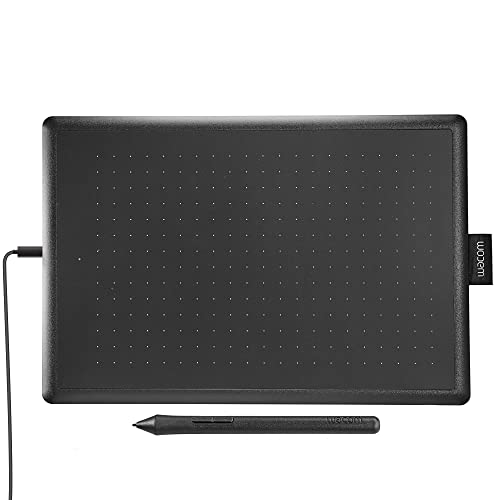
For students and beginners venturing into digital art, the One by Wacom Drawing Tablet (Medium) offers an accessible entry point. Measuring 10.9 x 7.4 inches, its compact design is perfect for drawing, photo editing, and visual communication. You’ll appreciate the natural tilt recognition and 2048 levels of pressure sensitivity for precise control. Plus, it’s certified for Chromebook, making setup a breeze. The tablet connects easily to any computer via USB, ensuring compatibility across platforms. With included accessories like the Wacom Pen 2K and replacement nibs, you’re fully equipped to ignite your creativity right away.
Best For: Students and beginners looking to explore digital art and design.
Pros:
- Compact design makes it ideal for drawing, photo editing, and visual communication.
- Natural tilt recognition and 2048 levels of pressure sensitivity provide precise control for detailed artwork.
- Plug-and-play setup with Chromebook and compatibility with various operating systems ensures easy connectivity.
Cons:
- Limited active area may not be suitable for professional artists needing larger workspaces.
- No wireless connectivity means reliance on USB connection, which can be less convenient.
- Basic features might not meet the needs of advanced users looking for more sophisticated tools.
HUION Inspiroy H640P Drawing Tablet (6×4 inch, Battery-Free Stylus)

With 8192 levels of pen pressure sensitivity, the HUION Inspiroy H640P Drawing Tablet offers an exceptional experience for artists and beginners alike. Its compact 6×4 inch size and lightweight design (just 1.41 lbs) make it portable and easy to use. You’ll appreciate the six customizable hotkeys, which enhance your workflow efficiency. This tablet is compatible with various operating systems, including Mac, Windows, Linux, and Android, making it versatile for all users, including left-handers. Whether you’re drawing, signing documents, or taking notes, it provides a natural and intuitive alternative to a traditional mouse.
Best For: Artists, beginners in drawing, painting, or photo editing looking for a portable and user-friendly drawing tablet.
Pros:
- 8192 levels of pen pressure sensitivity provide a highly responsive drawing experience.
- Customizable hotkeys enhance workflow efficiency by allowing quick access to frequently used functions.
- Compatible with multiple operating systems including Mac, Windows, Linux, and Android, making it versatile for various users.
Cons:
- The small size (6×4 inch) may not be sufficient for users requiring a larger drawing area.
- Limited built-in features compared to more advanced and expensive drawing tablets.
- Requires driver installation for full functionality, which may be a hassle for some users.
Wacom One Bluetooth Drawing Tablet (Medium)

Ideal for aspiring artists and professionals alike, the Wacom One Bluetooth Drawing Tablet (Medium) offers an impressive combination of portability and functionality. With dimensions of 9.9 x 7.1 inches and an active area of 8.5 x 5.3 inches, it’s perfect for drawing, photo editing, and visual communication. The included Wacom One Pen features 4096 levels of pressure sensitivity and tilt recognition, ensuring your strokes are precise and natural. Plus, customizable shortcut buttons on the pen help you access your favorite commands quickly. Compatible with Windows, Mac, Chromebook, and Android, it’s a versatile tool for your creative journey.
Best For: Aspiring artists and professionals seeking a versatile and portable drawing tablet for creative tasks.
Pros:
- High precision with 4096 levels of pressure sensitivity and natural tilt recognition for detailed artwork.
- Customizable shortcut buttons on the pen for quick access to frequently used commands, enhancing workflow efficiency.
- Wide compatibility with various devices, including Windows, Mac, Chromebook, and Android smartphones/tablets.
Cons:
- The active drawing area may feel limited for some users accustomed to larger tablets.
- USB-C connection might require additional adapters for certain devices, which could be inconvenient.
- As an entry-level tablet, it may lack some advanced features found in higher-end models.
XPPen Artist13.3 Pro Graphics Drawing Tablet

The XPPen Artist13.3 Pro Graphics Drawing Tablet is perfect for professionals who demand high color accuracy and an immersive drawing experience. With its 13.3-inch fully-laminated FHD display and an impressive 88% NTSC color accuracy, you’ll enjoy vibrant visuals. The battery-free stylus offers 8192 levels of pressure sensitivity and 60° tilt support, ensuring a natural drawing feel. Customize your workflow with eight shortcut keys and a sleek Red Dial for effortless zooming and brush adjustments. Compatible with major software like Photoshop and Illustrator, this tablet enhances your artistic potential and keeps your creative process smooth and efficient.
Best For: Professionals and artists seeking a high-quality drawing experience with exceptional color accuracy and customization options.
Pros:
- High color accuracy with 88% NTSC and support for multiple color spaces, ensuring vibrant visuals.
- Battery-free stylus with 8192 levels of pressure sensitivity for a natural and responsive drawing experience.
- Customizable shortcut keys and a Red Dial enhance workflow efficiency, allowing for quick adjustments.
Cons:
- The tablet’s smaller screen size (13.3 inches) may not be suitable for those who prefer larger drawing areas.
- Weight of 4.4 pounds may be less portable for artists on the go.
- Requires registration on the XPPen website for access to additional software, which may be an inconvenience for some users.
Wacom Intuos Pro Medium Bluetooth Graphics Drawing Tablet
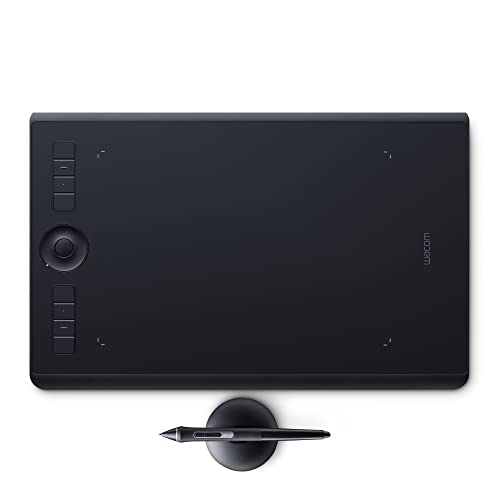
For artists and designers seeking a top-tier drawing experience, the Wacom Intuos Pro Medium Bluetooth Graphics Drawing Tablet stands out with its professional-grade features and compact design. This tablet boasts 8 customizable Express Keys, a Touch Ring, and a multi-touch surface for effortless navigation. The Wacom Pro Pen 2 enhances your creativity with 8192 levels of pressure sensitivity and tilt recognition, ensuring precision with every stroke. Plus, it’s battery-free and virtually lag-free. With seamless compatibility for both Mac and Windows, you’ll elevate your digital art game effortlessly. Don’t forget to take advantage of the included software registration benefits!
Best For: Artists and designers seeking a professional-grade drawing tablet that offers precision and customizable features for an enhanced creative experience.
Pros:
- High pressure sensitivity: The Wacom Pro Pen 2 provides 8192 levels of pressure sensitivity for detailed and nuanced artwork.
- Customizable features: Eight Express Keys and a Touch Ring allow for personalized shortcuts and streamlined workflow.
- Multi-touch capabilities: The tablet’s touch surface enables intuitive gestures for zooming and panning, enhancing navigation.
Cons:
- Price point: As a professional-grade tablet, it may be more expensive than entry-level options.
- Accessories sold separately: Additional tools like different pen tips and cases are not included, increasing the overall cost.
- Size may be limiting: The medium size might not be suitable for artists who prefer larger drawing surfaces.
Factors to Consider When Choosing Wacom Tablets for Professionals
When choosing a Wacom tablet, you need to contemplate several key factors. Think about device compatibility, pressure sensitivity, and the size that best suits your work style. Don’t forget to weigh portability and customization options to find the perfect match for your professional needs.
Device Compatibility and Connectivity
Choosing the right Wacom tablet hinges on understanding device compatibility and connectivity options. Make sure the tablet works with your operating system, whether it’s Mac, Windows, Android, or Chromebook, as different models support various systems. Connectivity options like Bluetooth or USB-C can considerably affect how easily you set up and use the tablet across multiple devices. Look for features such as dual Bluetooth channels that enable seamless switching between devices, boosting your workflow efficiency. Additionally, check if the tablet’s certified for specific platforms, especially if you plan on using educational or specialized software. Finally, confirm the availability of any necessary adapters for connecting to mobile devices or older computer systems to avoid compatibility issues.
Pressure Sensitivity Levels
Pressure sensitivity levels play an essential role in how effectively you can express your artistic vision with a Wacom tablet. Higher levels, like 8192, allow you to create nuanced, detailed strokes, mimicking traditional drawing techniques. If you choose a tablet with lower sensitivity, such as 2048 levels, you might find your ability to express subtle variations limited, making it less suitable for detailed illustrations. Additionally, many professional-grade tablets feature tilt recognition, enhancing your drawing experience by adjusting strokes based on the pen’s angle. This combination of high pressure sensitivity and tilt recognition creates a more natural, responsive feel that’s vital for professionals aiming to replicate the tactile experience of traditional media. Choose wisely for the best results!
Size and Active Area
Selecting the right size and active area for your Wacom tablet is essential, especially if you aim to enhance your creative workflow. You’ll find options ranging from compact models like the Wacom One at 9.9 x 7.1 inches to larger ones like the Wacom Intuos Pro Medium at 11.46 x 8.11 inches. A larger tablet offers more space for extensive projects, while a smaller model is great for simpler tasks or on-the-go use. Consider the active area, too; for instance, the Wacom Intuos Medium provides about 8.5 x 5.3 inches, allowing for precision in your artwork. Think about your typical workspace and project types, as these factors greatly influence your comfort and efficiency during long creation sessions.
Portability and Weight
While size and active area play a significant role in your Wacom tablet choice, portability and weight are just as important, especially for professionals on the move. Heavier tablets, like the Wacom Intuos Pro Medium at 14.6 ounces, can be cumbersome during travel, while lighter options like the Wacom MovinkPad 11 at 1.3 pounds offer better convenience. A compact design, such as the Intuos Pro Medium’s 11.46 x 8.11 x 0.04 inches, makes it easy to slip into your bag. Thinner models, like the Intuos Pro Medium with its 4 mm profile, enhance portability even further. Additionally, tablets with solid battery life, like the Intuos Pro Medium’s 16 hours per charge, guarantee you stay productive without frequent recharging while on the go.
Customization Options Available
When choosing a Wacom tablet, customization options can greatly enhance your creative workflow. Many models feature customizable Express Keys and shortcuts, letting you assign frequently used functions for quick access. For instance, the Wacom Intuos Pro offers multi-touch surfaces and buttons that you can tailor to your drawing style. With impressive pressure sensitivity levels reaching up to 8192, you’ll gain fine-tuned control over your brush strokes. Additionally, some tablets support tilt recognition, allowing you to customize it further for a more natural feel while drawing. You can also adjust settings through dedicated software, refining pen sensitivity and button functions to match your specific creative needs. Embrace these options to elevate your art-making experience.
Software Compatibility and Support
Choosing the right Wacom tablet involves considering software compatibility and support, as these factors can greatly impact your workflow. Wacom tablets work seamlessly across various operating systems like Windows, macOS, Android, and Chrome OS, making them versatile for different professional settings. You’ll find built-in software support for popular applications like Adobe Photoshop, Illustrator, and Clip Studio Paint, which enhances your efficiency. Plus, registering your tablet often brings bonuses like free trials of software or extra cloud storage to support your creative projects. The driver software also lets you customize settings and shortcuts, tailoring your experience to meet specific software needs. If you’re in an educational environment, some tablets are certified for Chromebook compatibility too.